¶ 1. Overview
Allows all changes related to the model structure in T6 to be recorded. Thus, when creating a new dimension or adding a new member to a dimension, these changes are stored.
The entire model structure is saved in XML format.
¶ 1.1. Prerequisites
The user must have the following Manager Functionality enabled:
¶ 2. Usage
To access the model history, follow the steps below:
1. In the main T6 menu, go to Modeling and select the Model History option.
2. A side panel called Model History will open.
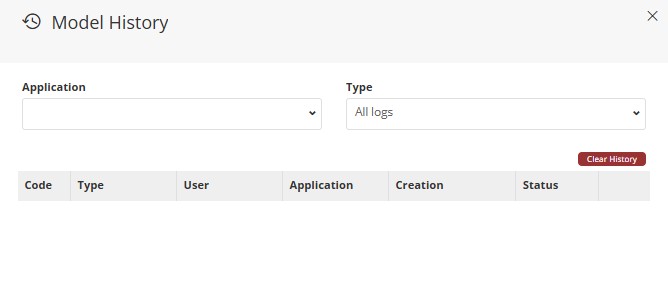
3. By default, no records will be displayed until an application is selected.
-
Select the desired application through a dropdown, as well as the record type, which by default displays All Records.
- In Type, you can select All Logs, Cube, or a Specific Dimension.
4. If you want only records of a specific type from an application to be displayed, make the selection using the Application and Type dropdowns.
5. The following fields are displayed in the listing:
-
Code: Code generated when inserting a record;
-
Type: Dimension name or Cube;
-
User: User who performed the insertion;
-
Application: Name of the T6 application;
-
Creation: Date and time when the insertion occurred;
-
Status: Insertion status, which can take three values:
- Synchronized: A cube that has been saved and published;
- Historical: History of already published cubes. You can delete a specific historical record by clicking
 next to the name in the listing. It is also possible to delete all historical records at once by clicking
  located above the listing;
 - Valid: A cube that has been saved but not published. If you do not wish to publish the cube with the saved changes, you can click
 to undo the changes.
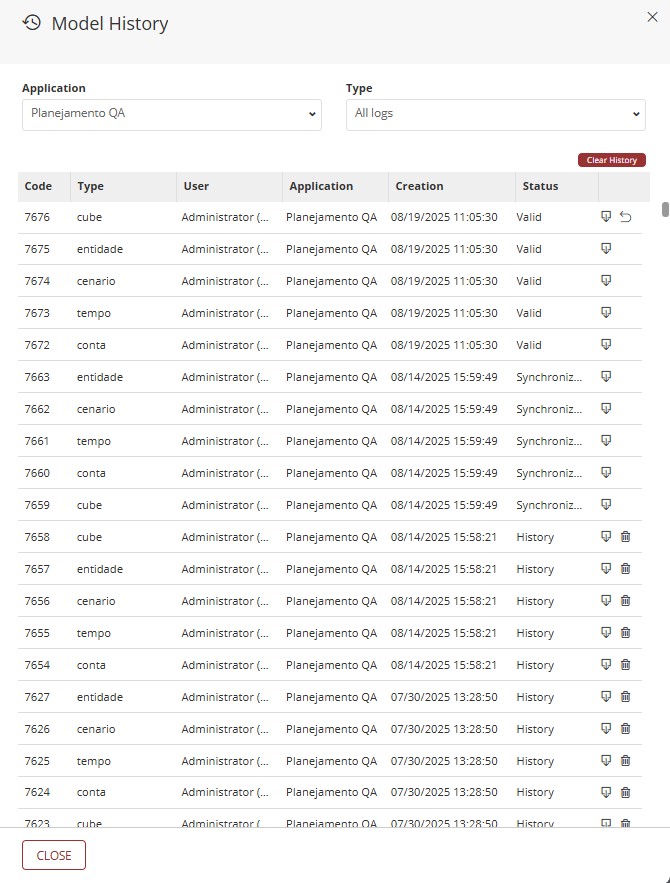
You can download a specific record by clicking
next to the name in the listing. By clicking Export, a file in .XML format will be downloaded.
¶ 3. Q&A
Frequently Asked Questions
1. What is Model History in T6?
Model History is a tool that records all structural changes made to the model, such as creating dimensions or adding members, saving this information in XML format.
2. What are the prerequisites to access Model History?
To access model history, you need to have the manager feature Manage application structure/model enabled.
3. How to access Model History?
To access model history, follow the steps below:
- Access the main menu of T6;
- In the Modeling section, select Model History;
- A side panel will open for consultation.
4. What types of records can be viewed in model history?
In model history, you can view all records, cubes only, or a specific dimension, according to the selection in the Application and Type dropdowns.
5. What fields are displayed in the model history listing?
In the model history listing, the following fields are displayed:
Code;
Type;
User;
Application;
Created;
Status.
6. What do the statuses of records mean in model history?
The statuses of records in model history can be:
Synchronized: Cube saved and published.
History: Cubes already published, which can be deleted individually or in bulk.
Valid: Cube saved but not published; can be undone.
7. Is it possible to delete historical records in model history?
Yes, historical records can be deleted individually or all at once using the trash and clear history icons.
8. How to export a record from model history?
To export a record from model history, click on the export icon next to the desired record to download the file in XML format.
9. What happens if I undo a valid change in model history?
If a valid change is undone in model history, the cube returns to the previous state, discarding the saved changes that have not yet been published.
10. Does model history record data changes or only structural changes?
Model history records only structural changes to the model, such as dimensions and members, not data changes.