¶ 1. Overview
The Scenario Creation tool allows generating new scenarios by copying data from existing scenarios. This copy can be full or partial, including filters by period, members, and specific dimensions, with the option to combine data from up to two different scenarios in the same application.
This tool is essential for tests, simulations, and projections in controlled environments without compromising original data. It also enables variation analysis based on different assumptions or planned adjustments, promoting greater flexibility and safety in strategic decision-making.
¶ 1.1. Prerequisites
To use this tool, in Permissions, the user must have the following Manager Features enabled:
You must also enable the Preview Feature:
¶ 2. Functionality
The Scenario Creation tool is divided into stages that guide the user throughout the process:
-
Define Scenario: Enter the basic data of the new scenario, such as name, source application, and scenario(s) to be copied, with their respective periods. This stage also includes the option to copy data directly from the selected scenario data tables.
-
Dimension Filter (optional): Restricts the data to be copied based on user-created dimensions, in addition to the default Entity dimension. The Account, Time, and Scenario dimensions are hidden by default in this stage.
-
Member Selection: Lets you define which specific members of each dimension should be included in the copy. If no member is selected, the entire data scope is considered.
-
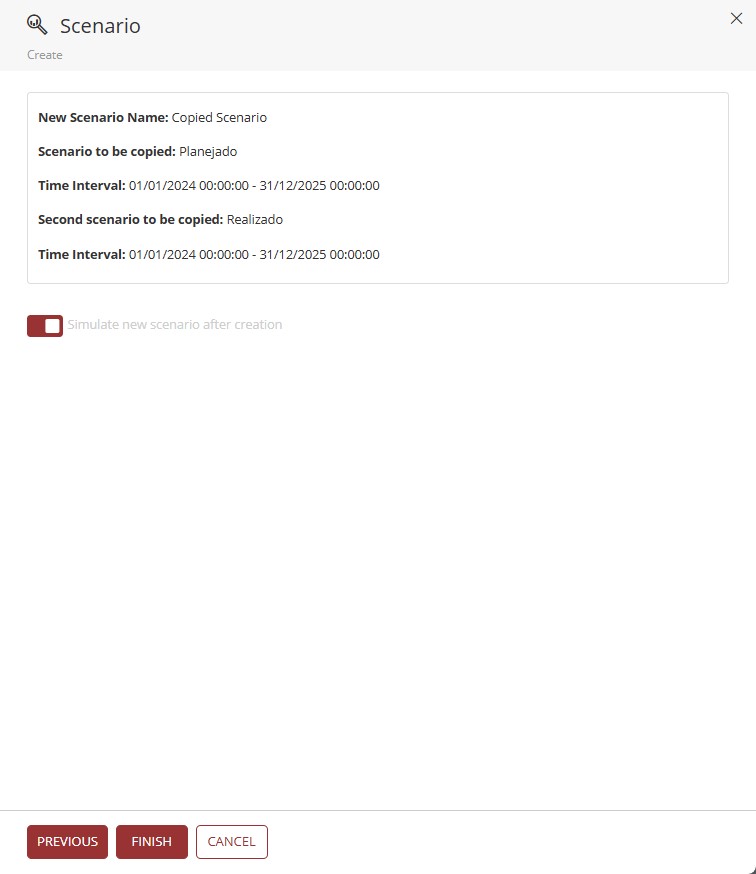
Review and Confirmation: Shows a summary with a preview of the actions that will be performed. You can enable automatic simulation of the new scenario after creation is completed.
¶ 3. Usage
To use Scenario Creation, follow these steps:
1. In the T6 main menu, click Scenario;
2. In Scenario, select the Create option;
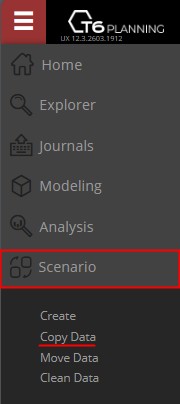
- A side panel will open;
In the side panel, in the Define Scenario stage, you will have the following required fields:
- New Scenario Name: Define the name of the new scenario to be created;
- Application: Using a dropdown, select which application the scenario will be copied from;
- Scenario to copy: Also using a dropdown, select the scenario whose data will be copied;
- Start: Initial date of the period to be copied, based on the Time dimension of the selected application;
- End: Final date of the period to be copied, based on the Time dimension of the selected application.
You will also have an optional stage, Define second scenario (optional), with the following fields:
- Second Scenario to copy: Using a dropdown, select a second scenario to be copied (related to the same application selected earlier);
- Start: Initial date of the period to be copied, based on the Time dimension of the selected application;
- End: Final date of the period to be copied, based on the Time dimension of the selected application.
At the end of the panel, there is a switch button Copy data from data table. When enabled, the system automatically creates records for the new scenario in data tables that contain links to this dimension.
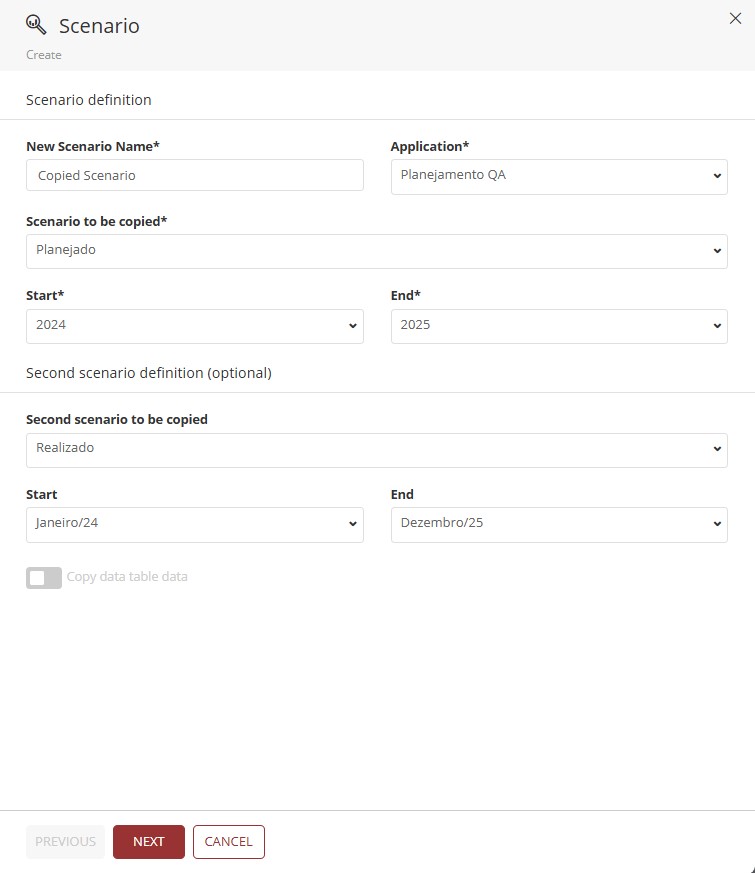
3. Click Next to proceed to the next stage.
In the Dimension Filter stage, the Account, Time, and Scenario dimensions are hidden. Only user-created dimensions and the default Entity dimension are available for selection. This stage is optional;
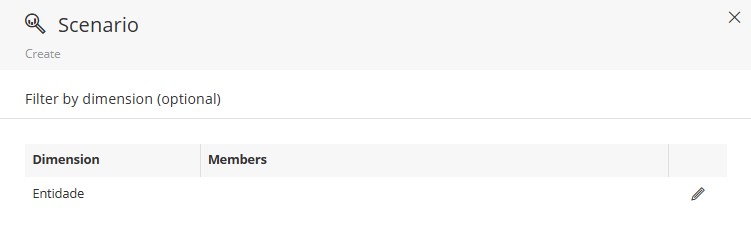
- Click
 to go to the member selection stage;
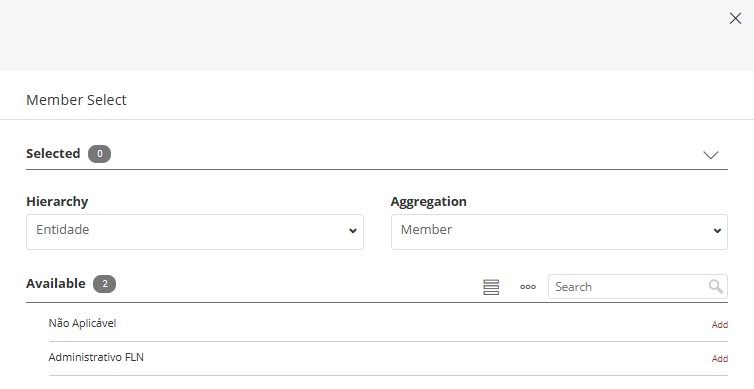
In this stage, you can filter which members you want to bring values from when copying the scenario. If left blank, the full scope is copied to the new scenario. If you define any member, all others not added will be excluded.
Besides the member itself, you can also define the aggregation type.
4. After defining the Scenario(s) and members, click Next.
- You will see a preview of the actions to be performed so you can review the new scenario to be created. There is also a switch button, Simulate new scenario after creation, which, when enabled, redirects you to the scenario simulation stage when creation is finished;
For more information about Simulations, visit: Simulations | T6 Help Center.
Carefully review the displayed data, because after completing the scenario copy, it will not be possible to correct it. You will need to delete the created scenario and perform the action again.
5. To finish, click Conclude.
- After completing creation, you must publish the Cube;
- Go to Modeling in the T6 main menu;
- Select Designer;
- Select the Application where the new scenario was created;
- Click Save;
- Publish the application cube;
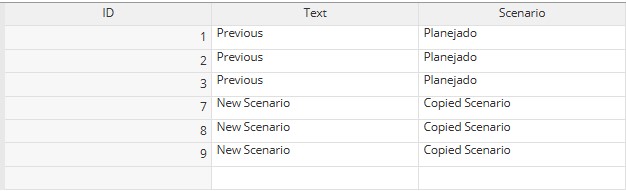
If you enabled the switch button Copy data from data table, after finishing the configuration, when accessing a Data Form that uses a Data Table linked to the Scenario Dimension, records will be created in the data table and replicated in the Data Form.
For example:

→
¶ 4. Q&A
Frequently Asked Questions
1. Which features are required to use the Scenario Creation tool in T6?
To use the Scenario Creation tool in T6, the user must have the manager features Manage application structure/model and New scenario wizard enabled.
You must also enable the Preview Feature New Scenario Creation.
2. In Scenario Creation, can I combine data from two different scenarios?
Yes. During Scenario Creation, you can combine data from up to two different scenarios in the same application using the Define second scenario option.
3. Is it mandatory to define a second scenario in Scenario Creation?
No. During Scenario Creation, defining a second scenario is optional. You can create a new scenario by copying data from only one existing scenario.
4. Which dimensions can I filter during Scenario Creation?
During Scenario Creation, you can filter by user-created dimensions and the default Entity dimension.
The Account, Time, and Scenario dimensions are hidden in this stage.
5. What happens if I do not select any specific member during Scenario Creation?
During Scenario Creation, if no member is selected, the full data scope is considered in the copy.
6. Can I correct errors after creating a scenario?
No. After finishing scenario creation with the Scenario Creation tool, it is not possible to correct it. You must delete the created scenario and repeat the procedure.
7. What do I need to do after creating a scenario?
After completing scenario creation, you need to publish the cube of the application.
To do so, follow these steps:
- In the T6 Main menu, open Modeling;
- Select Designer;
- Select the Application where the new scenario was created;
- Click Save;
- Publish the application cube;
8. What does the “Copy data from data table” option do in Scenario Creation?
In Scenario Creation, when the Copy data from data table option is enabled, the system automatically creates records for the new scenario in data tables that contain links to the scenario dimension.
9. What is “automatic simulation” after scenario creation?
Automatic simulation in Scenario Creation is an option that, when enabled, automatically redirects the user to the scenario simulation stage after creation is completed.
10. What is the Scenario Creation tool used for?
The Scenario Creation tool is essential for tests, simulations, and projections in controlled environments, variation analysis under different assumptions, and strategic decision-making without compromising original data.
11. Through Scenario Creation, can I create scenarios from different applications?
No. In Scenario Creation, scenarios must belong to the same application. You can only combine data from scenarios that belong to the same selected application.