¶ 1. Summary
The T6 Planning manual covers the different authentication modes available, highlighting the importance of the process of obtaining and validating credentials to determine user access. It details Forms authentication, recommended for Internet access, providing precise instructions on configuration in T6 Planning and IIS 8.0. Additionally, it explores authentication via Active Directory with and without Single Sign-On, offering specific guidance for integration with Microsoft Active Directory. The document concludes by mentioning support for authentication with Active Directory Federation Services, directing to a specific manual for additional details on this integration.
¶ 2. Authentication Modes
¶ 2.1 Overview
Authentication is the process of obtaining credentials such as Login and Password – and validating this information against some entity, such as a database or domain server. If this validation is successful, then the authorization process will determine what access the authenticated user will have.
Among the existing authentication types, T6 Planning supports Forms, Active Directory, OpenID Connect, and SAML. This manual will show you how to perform each of the authentication methods supported by T6 Planning.
For more information, access Multiple Authentication Providers.
¶ 3. Forms Authentication
¶ 3.1 Overview
Forms authentication is the most suitable model for when T6 Planning is accessed over the Internet. In this model, unauthenticated requests are redirected to a login screen where the user will fill in their credentials (username and access password). This information will then be validated in the T6 Planning database where it will be authenticated. After authentication occurs, the user's credentials are stored in a cookie that will be used during the session. The entire authentication process is performed by T6 Planning itself.
This is the default mode used by Internet Information Service (IIS) applications.
¶ 3.2 Configuring Forms Authentication in T6 Planning
To configure Forms authentication in T6 Planning, access the T6 main menu → Settings → Authenticator.
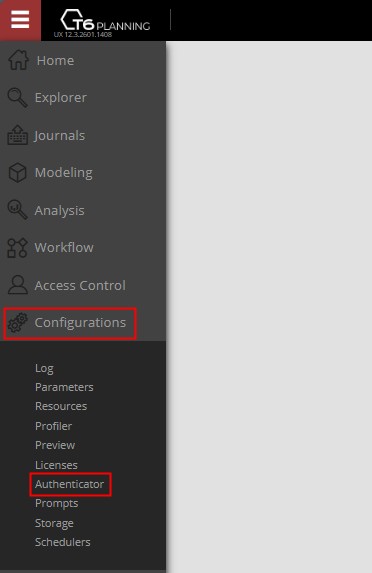
A panel will be displayed on the side, where we can view the authentication providers already registered and register other providers.
Let's click on  to register the Forms authentication mode;
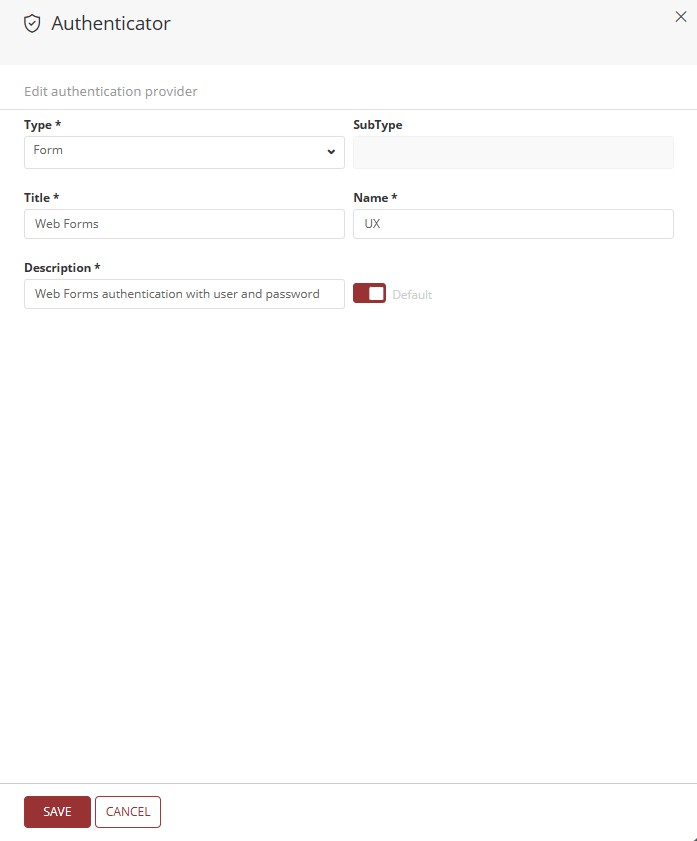
- In type, let's click on the dropdown and select the Forms option;
- We will need to add title, name, and description;
- We also have the Default flag, a switch button that when activated, will make this our default authentication mode;
- To finish, let's click on
 .
.
¶ 3.3 Configuring Forms Authentication in IIS
This form of authentication is the default method for websites in IIS. Therefore, in most cases, it will not be necessary to make any changes, you just need to verify that the settings are correct.
To configure Forms authentication in IIS 8.0, access the Windows Control Panel and set the view mode to Small Icons.
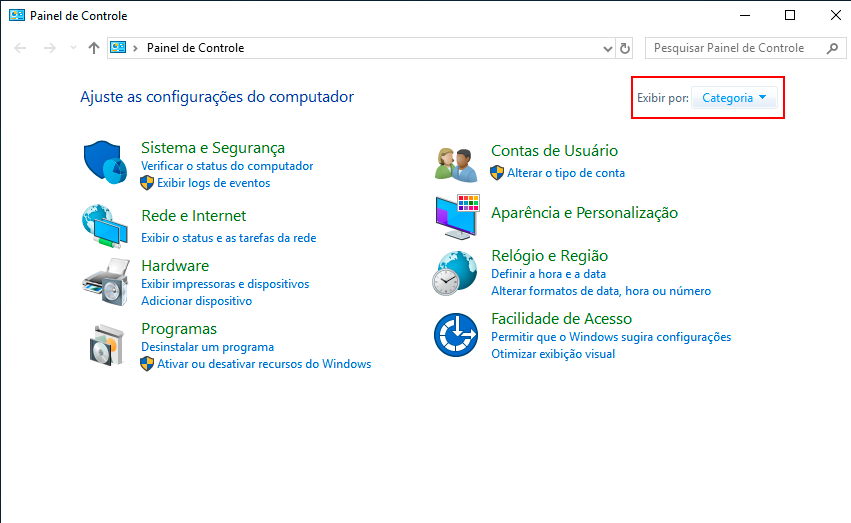
On the next screen, click on the Administrative Tools option.
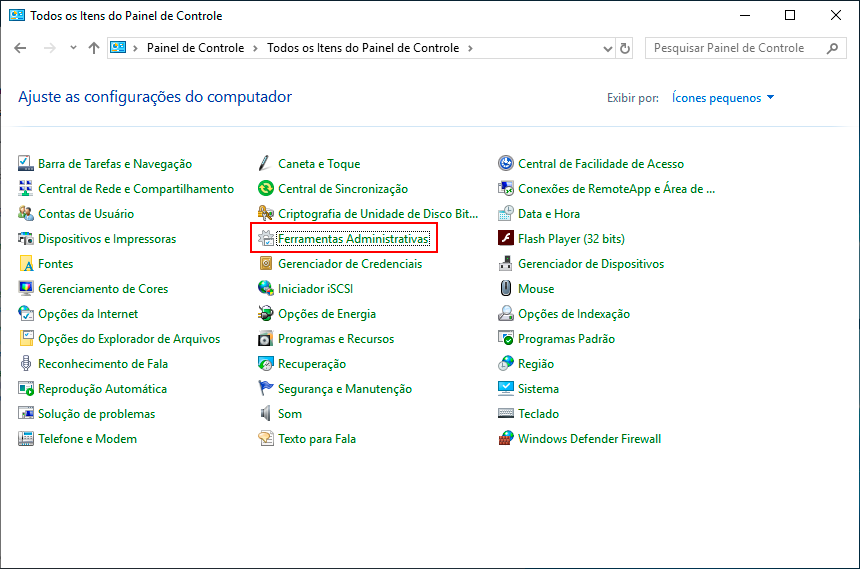
On the Administrative Tools screen, click on the Internet Information Services (IIS) Manager option.
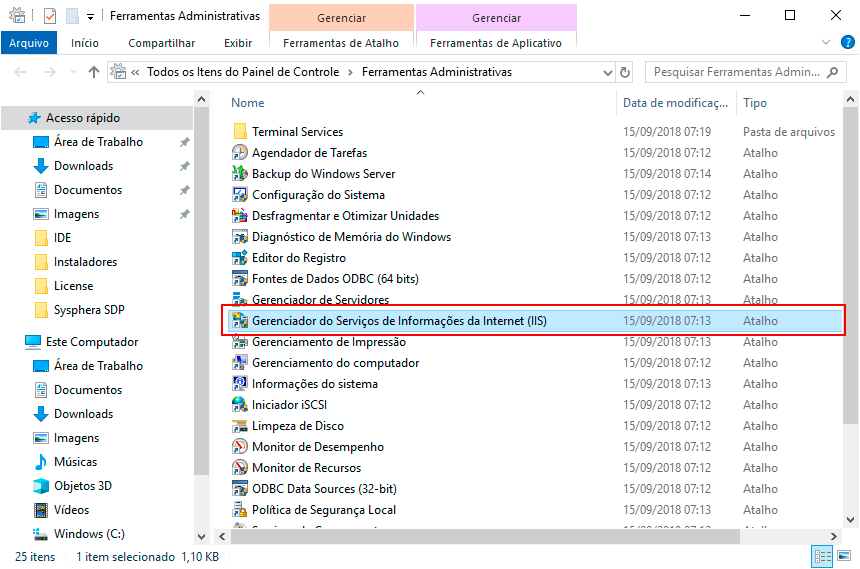
On the IIS 8.0 screen, click on the Sites folder and then choose the WebSite for T6 Planning.
Observe the options that will appear on the side, on the Features View screen, and double-click on the Authentication icon.

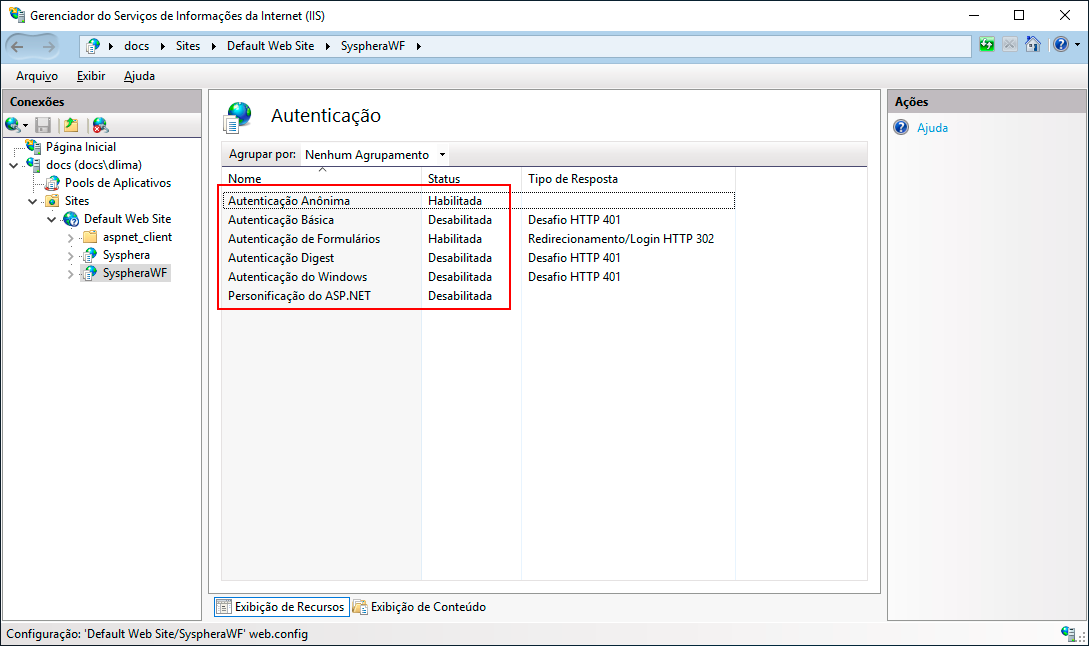
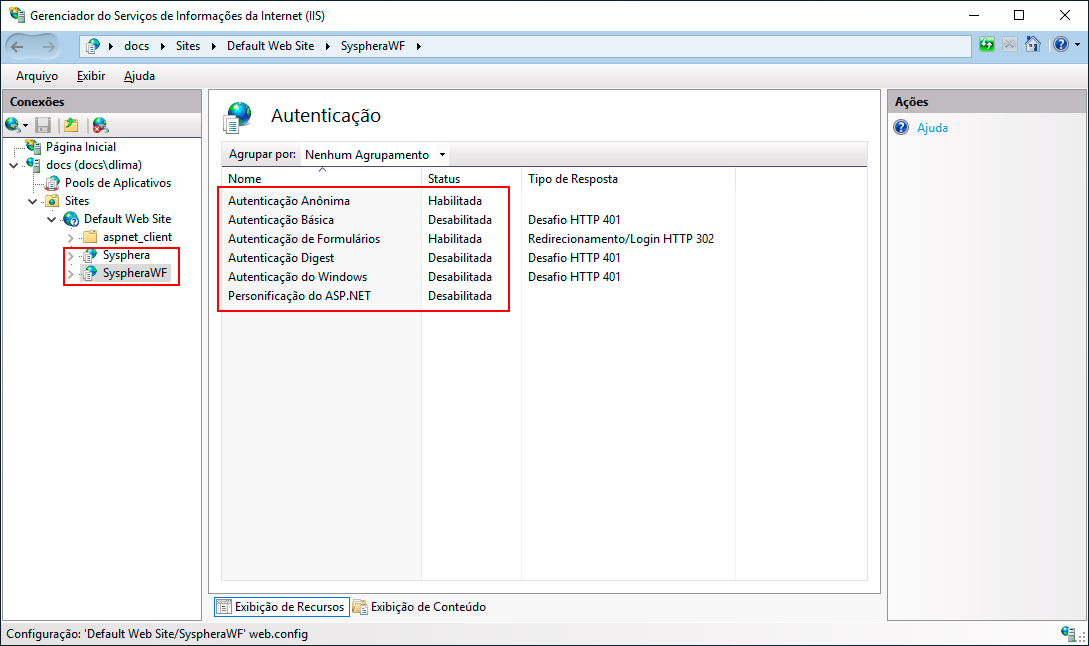
On the IIS screen, you should make sure that the authentication status for the T6 PlanningWF portal is correct, as shown below:
-
Enabled:
-
Anonymous Authentication
-
Forms Authentication
-
Disabled:
-
Basic Authentication
-
Digest Authentication
-
Windows Authentication
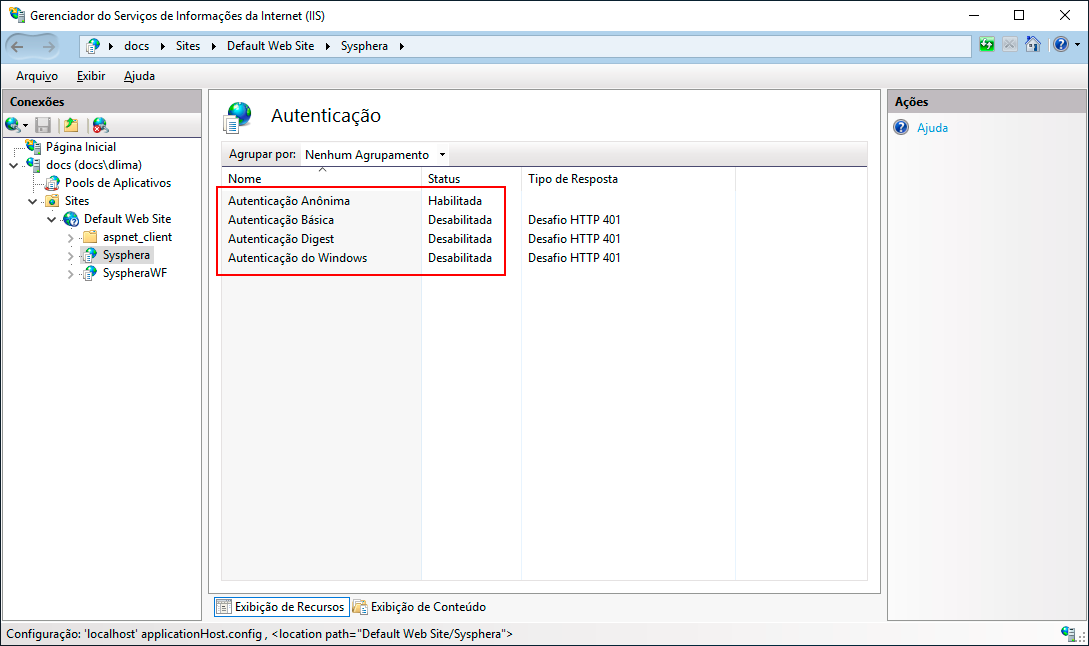
On the IIS screen, you should make sure that the authentication status for the T6 Planning Power Planning portal is correct, as shown below:
-
Enabled:
-
Anonymous Authentication
-
Disabled:
-
Basic Authentication
-
Digest Authentication
-
Windows Authentication
¶ 4. Active Directory Authentication
¶ 4.1 Overview
Authentication via Microsoft Active Directory is the most suitable authentication model for when T6 Planning is accessed through the company's Intranet. In this form of authentication, the Login screen will not be displayed, as it is the browser that will send the logged-in user's credentials to the server. T6 Planning will check if the user is in the Active Directory group and, if not, will redirect them to an error screen.
Active Directory is a directory service for Windows networks, from version 2000 to the most current. A Directory Service is a network service that identifies all available resources on a network, maintaining information about user accounts, groups, computers, resources, security policies, etc. – in a centralized database that makes these resources available to users and applications.
When integrated with Active Directory, most applications do not use their own user and group database, relying on Active Directory's centralized registry. In the case of T6 Planning, the database is still necessary and extremely important, as it manages access control and permissions within the solution.
T6 Planning, when integrated with Active Directory, performs a search in its directory to validate if the user's login exists and is active. If the search is positive, the next step in the authentication process is to search for this user in the T6 Planning database to verify their access permissions.
¶ 4.2. Active Directory
To configure Active Directory authentication in T6 Planning, access the T6 main menu → Settings → Authenticator.
A panel will be displayed on the side, where we can view the authentication providers already registered and register other providers.
Let's click on to register the Active Directory authentication mode;
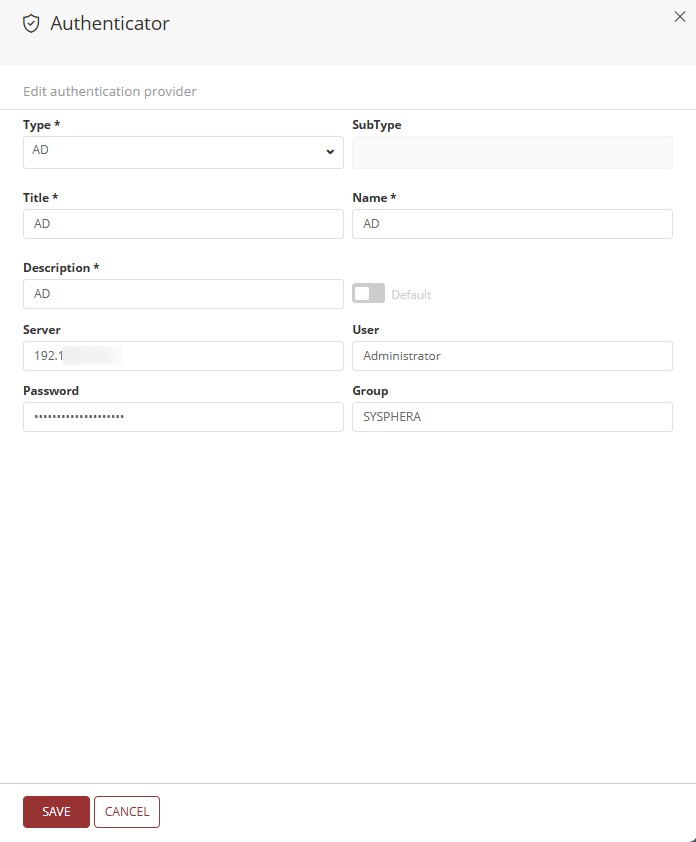
We will need to fill in the following fields:
- Server: The address of the server where AD is hosted. It can be a fully qualified domain name or an IP address;
- User: The username of an account that has permissions to query AD. This account will be used to connect to AD and perform authentication and query operations;
- Password: The password associated with the user account mentioned above;
- Group: The name of the group in AD that contains the user you want to authenticate or authorize;
- We also have the Default flag, a switch button that when activated, will make this our default authentication mode;
- To finish, let's click on .
To enable login through AD, the provider must be configured as default.
When T6 Planning is integrated with Active Directory, some details in the information flow, specifically user authentication, are different.
When accessing the T6 Planning portal, the user sees the Login screen, where they must enter their Active Directory credentials. T6 Planning then connects to Active Directory and searches for this information. Once the user is located, T6 Planning checks if they belong to the group indicated in the application parameter. Finally, T6 Planning checks if this user is already registered in the database and, if not, a new registration is created from the data returned by Active Directory, with the simplest profile available in the current T6 Planning license.
When using Active Directory, we have the option to enable SSO (Single Sign On) or not.
To do this, let's access the T6 main menu → Settings → Parameters;
- Let's access the Integration section;
- In the Enable SSO option;
- Check Yes to enable SSO;
- Check No to keep SSO disabled.
The AD (Active Directory) provider is not displayed on the login screen since when selecting it as the default provider, when accessing the T6 URL, the login will be automatically completed.
¶ 4.2.1 Configuring Authentication with Single Sign-On in IIS
To configure authentication with Single Sign-On in IIS 8.0, access the Windows Control Panel and set the view mode to Small Icons.
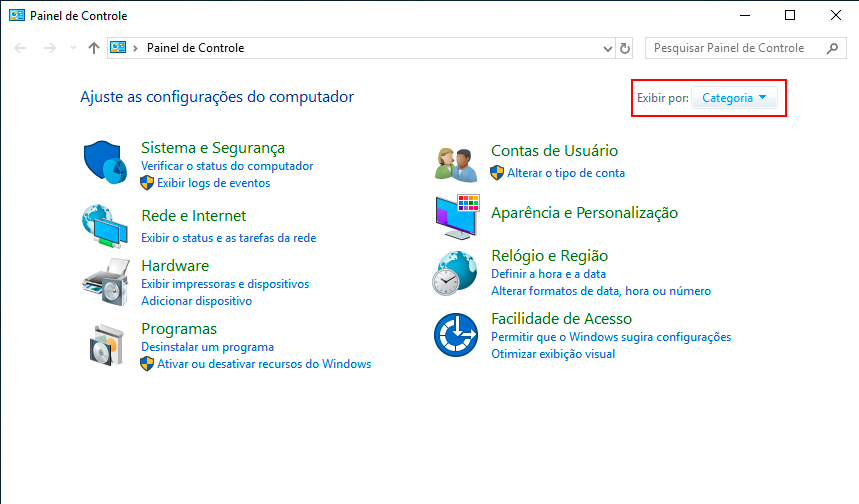
On the next screen, click on the Administrative Tools option.
On the Administrative Tools screen, click on the Internet Information Services (IIS) Manager option.
On the IIS 8 screen, click on the Sites folder and then choose the WebSite for T6 Planning.
Observe the options that will appear on the side, on the Features View screen, and double-click on the Authentication icon.
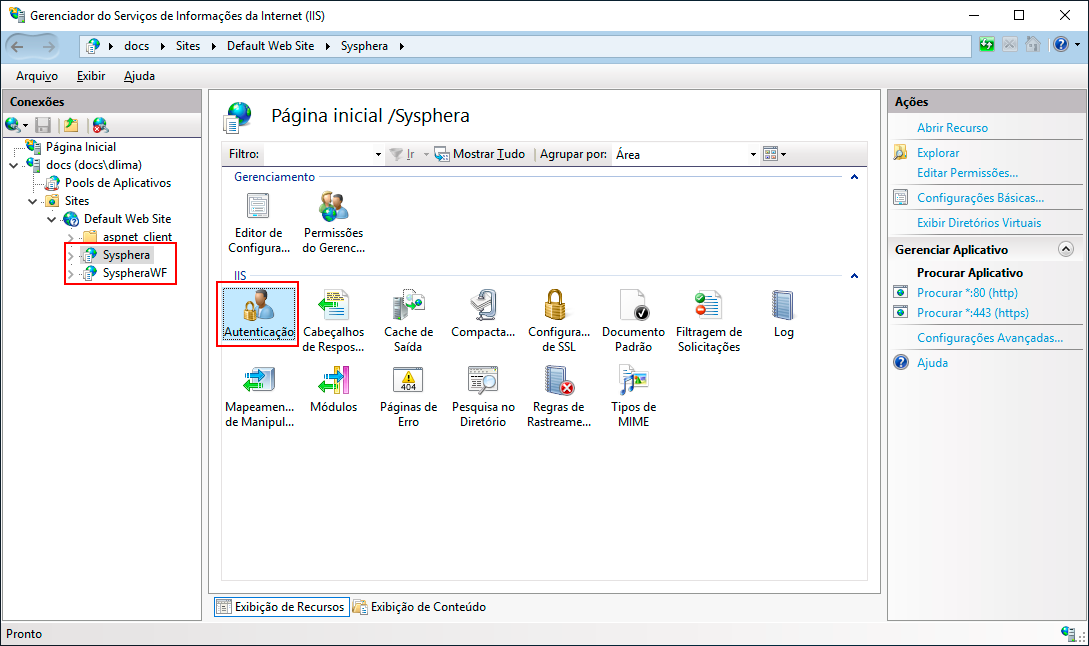
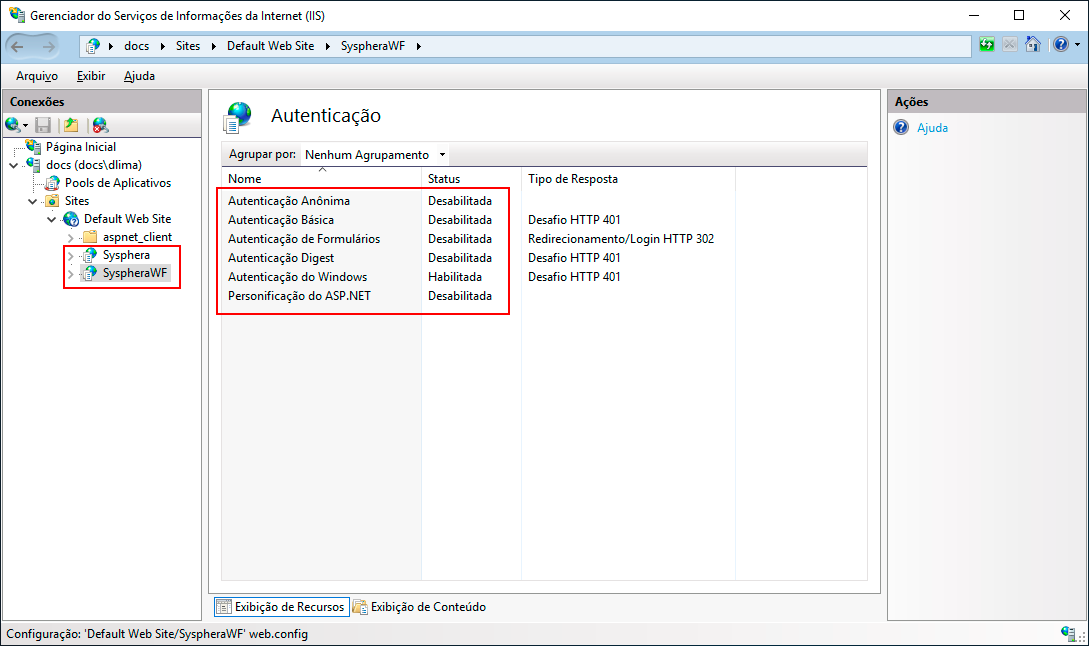
On the IIS screen, you should make sure that the authentication status is correct, as shown below:
-
Enabled:
-
Windows Authentication
-
Disabled:
-
Anonymous Authentication
-
Basic Authentication
-
Forms Authentication
-
Digest Authentication
¶ 4.2.2 Configuring Authentication without Single Sign-On in IIS
To configure authentication without Single Sign-On in IIS 8.0, access the Windows Control Panel and set the view mode to Small Icons.
On the next screen, click on the Administrative Tools option.
On the Administrative Tools screen, click on the Internet Information Services (IIS) Manager option.
On the IIS 8.0 screen, click on the Sites folder and then choose the WebSite for T6 Planning.
Observe the options that will appear on the side, on the Features View screen, and double-click on the Authentication icon.
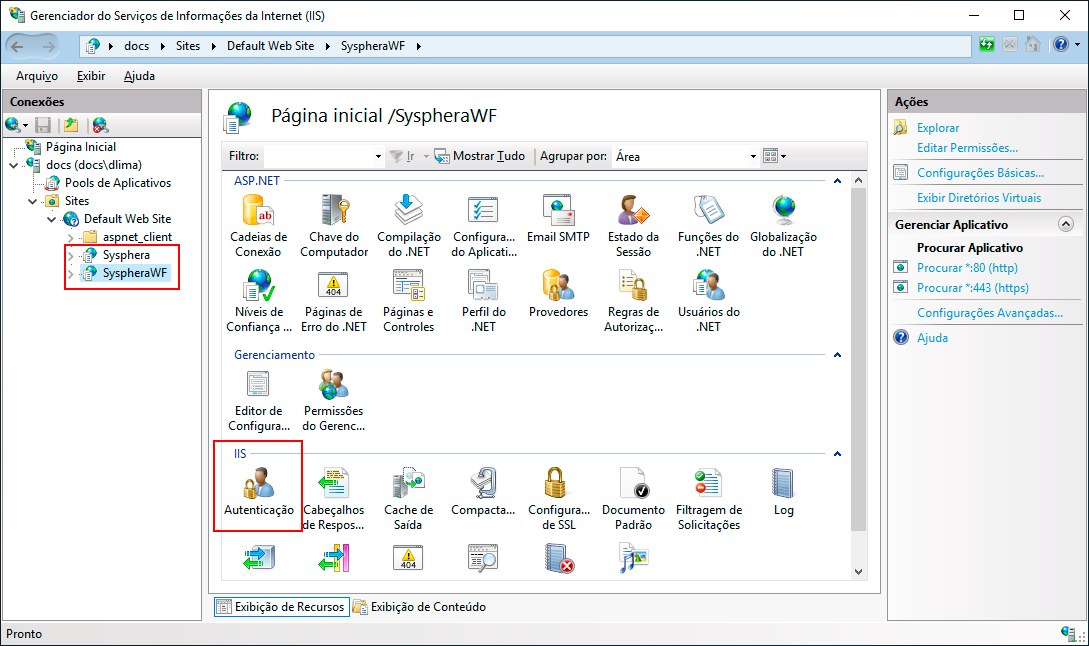
On the IIS screen, you should make sure that the authentication status is correct, as shown below:
-
Enabled:
-
Anonymous Authentication
-
Forms Authentication
-
Disabled:
-
Basic Authentication
-
Digest Authentication
-
Windows Authentication
¶ 5. OpenID Connect
The OpenID Connect Authentication Provider is an authentication layer based on the OAuth 2.0 protocol, which allows user identity verification in a secure and standardized way. It is widely used in applications for single sign-on, allowing users to access different systems with a single credential.
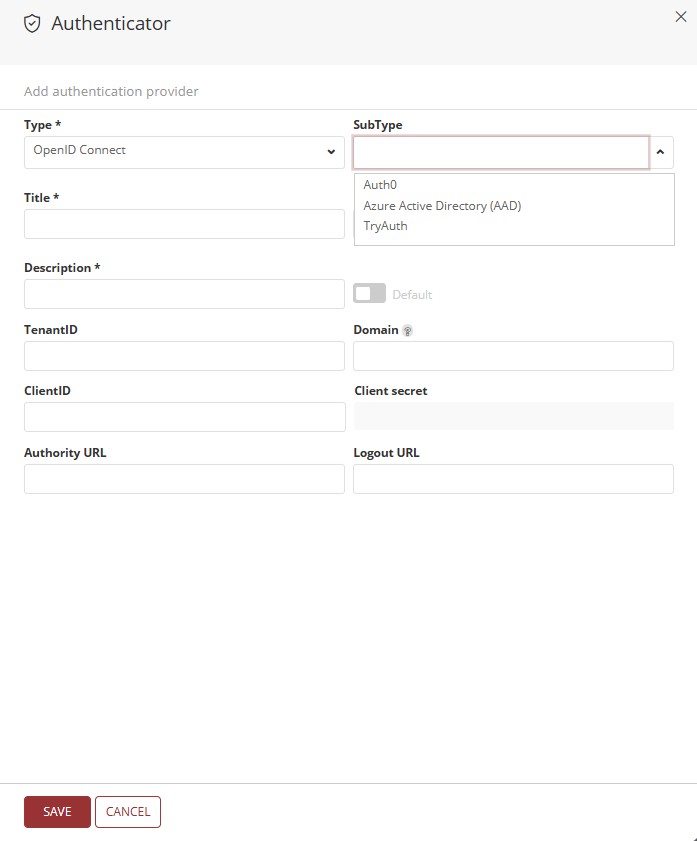
Among the different authentication providers compatible with the OIDC standard, in T6 we use the following subtypes:
-
Auth0: Identity as a Service (IDaaS) platform that simplifies authentication, offering support for multiple protocols, integration with advanced security features, and user management.
-
Azure Active Directory (AAD): Microsoft solution that provides directory-based enterprise authentication. Ideal for organizations using the Microsoft ecosystem, enabling integration with Microsoft 365, Azure services, and other enterprise applications.
-
TryAuth: Lightweight and simplified authentication provider, designed for testing, staging environments, or applications with simpler demands. Allows quick configuration with basic support for the OIDC flow.
The choice of provider depends on the specific authentication needs of your application, security requirements, access control, and corporate environment.
¶ 6. Authentication and Integration with Active Directory Federation Services
T6 Planning now also supports authentication with AD FS. For more details, see the T6 Planning Integration with Active Directory Federation Services Manual.