¶ 1. Overview
The Cell Value Breakdown panel allows you to configure values composed of multiple entries, with arithmetic operations and hierarchical logic. This feature turns the cell into a calculated cell, with specific editing and display rules.
¶ 1.1. Prerequisites
To use the Cell Value Breakdown feature, you must:
- Have permission to edit data in forms;
- Be working with an editable cell in a form;
- Have access to the tool via the cell's context menu.
For more information on required permissions, see: Features and Permissions.
¶ 1.2. Cell Value Breakdown
To access the feature:
- Select the desired cell and click Cell Value Breakdown on the ribbon;
- A side panel will open with:
-
The context of the selected cell;
-
A table with the following fields:
- Description: Free text field with an explanation of the value;
- Operation: Operator applied (+, -, *, / or ~);
- Value: Number associated with the row.
Initially, no data will be displayed. The fields must be filled in manually:
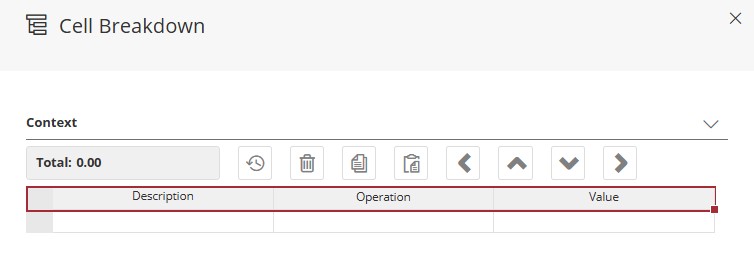
At the top of the panel is the Total field, which shows the calculated value of the cell based on the defined items.
After saving, the cell becomes calculated and can no longer be edited via the form.
¶ 2. Features
Through the Cell Value Breakdown panel, you can perform various actions:
-
History
 Displays the cell's change history, showing what was modified, by whom, and when.
-
Remove
 Deletes the selected row or item from the breakdown.
-
Copy
 Copies the selected item, including its children.
-
Paste
 Pastes previously copied content to another point in the breakdown.
-
Move Left
 Decreases the row's indentation (moving up one hierarchical level).
-
Move Up
 Moves the item one position up on the same level.
-
Move Down
 Moves the item one position down on the same level.
-
Move Right
 Increases the indentation, making the item a child of the one above.
¶ 3. Usage
¶ 3.1. Operators and Calculation Rules
¶ How It Works
- The user can input values and reopen the panel for adjustments;
- For each edit, the Apply button must be clicked again;
- The breakdown is saved automatically when saving the worksheet.
The Refresh button restores the cell’s original data. When used, all unsaved changes will be lost.
After applying the breakdown, the cell is locked for direct editing;
Once the worksheet is saved, the cell remains uneditable.
¶ Available Operators
+(Addition): Adds the value to the subtotal or total;-(Subtraction): Subtracts the value from the subtotal or total;*(Multiplication): Multiplies the current subtotal;/(Division): Divides the current subtotal;~(Reference): Informative only, does not affect the calculation.
¶ Application Rules
- The root-level operator determines how children are aggregated;
- Operators on child rows affect the value of the immediate upper level;
*and/require children to use only+or-;~does not affect the result and serves as a visual reference.
Root value with children
- It is not possible to define a direct value on the root if it has children.
¶ 4. Breakdown Example
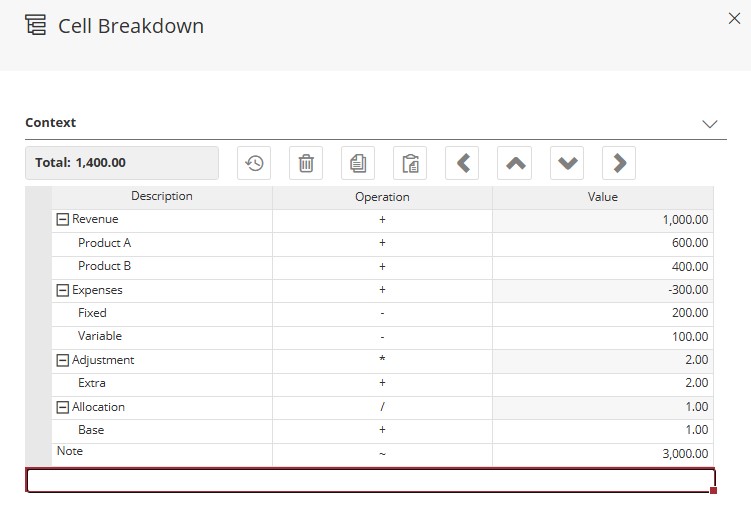
Below is the description of the panel displayed above, along with the breakdown calculation:
| Level | Item | Operator | Value | Note |
|---|---|---|---|---|
| Root | Revenue | + | 1000 | Sum of children |
| Child | Product A | + | 600 | |
| Child | Product B | + | 400 | |
| Root | Expenses | + | -300 | Negative sum of children |
| Child | Fixed | - | 200 | |
| Child | Variable | - | 100 | |
| Root | Adjustment | * | 2 | Multiplies subtotal (applied after sum) |
| Child | Extra | + | 2 | |
| Root | Allocation | / | 1 | Divides final subtotal |
| Child | Base | + | 1 | |
| Root | Note | ~ | 3000 | Reference value, no impact on total |
Total: 1400
¶ 4.1. Example Calculation
Revenue:
Product A (600) + Product B (400) = 1000
Expenses:
Fixed (200) + Variable (100) = 300
→ Subtotal: 1000 - 300 = 700
Adjustment:
Subtotal (700) × 2 = 1400
Allocation:
1400 ÷ 1 = 1400
Note:
~3000 → Informative only, not included in calculation
Final Total: 1400
When a cell value is broken down, the cell is displayed in the form with a red indicator in the top corner.

¶ 5. Q&A
Frequently Asked Questions
1. What permissions are required to use the Cell Value Breakdown feature?
To use the Cell Value Breakdown feature, you must:
- Have permission to edit data in forms;
- Be working with an editable cell in a form;
- Have access to the tool via the cell's context menu.
2. How do I access the Cell Value Breakdown feature?
After opening the form, select the desired cell and click Cell Value Breakdown on the ribbon. A side panel will open with the configuration options.
3. What happens to the cell after I apply Cell Value Breakdown?
After applying Cell Value Breakdown, the cell becomes calculated and can no longer be edited directly through the form. After saving the worksheet, it remains uneditable.
4. Can I undo an applied Cell Value Breakdown?
Yes, using the Refresh button, which restores the cell’s original data, but all unsaved changes in the form will be lost.
5. Which operators are available in Cell Value Breakdown and what does each one do?
The following operators are available:
- + (Addition): Adds the value to the total;
- - (Subtraction): Subtracts the value from the total;
- * (Multiplication): Multiplies the current subtotal;
- / (Division): Divides the current subtotal;
- ~ (Reference): Informative only, does not affect the calculation.
6. When using Cell Value Breakdown, can I use any operator on items with children?
No. When using * (multiplication) or / (division), child items must use only + (addition) or - (subtraction). The ~ operator does not affect the result.
7. How does hierarchy work in Cell Value Breakdown?
In Cell Value Breakdown, the root operator determines how child items are aggregated. Operators on child items affect the value of the immediate parent level.
8. When using Cell Value Breakdown, can I set a direct value on the root if it has children?
When using Cell Value Breakdown, it is not possible to set a direct value on the root if it has children.
9. How can I reorganize Cell Value Breakdown items?
To reorganize Cell Value Breakdown items, use the movement options:
Move Left/Right: Changes the hierarchical level;
Move Up/Down: Moves within the same level.
10. Can I copy items between different Cell Value Breakdowns?
Yes. To copy items between different Cell Value Breakdowns, use the Copy and Paste functions.
When an item is copied, all its children are copied as well.
11. When are changes saved in Cell Value Breakdown?
When using Cell Value Breakdown, after each edit you must click Apply. The breakdown is automatically saved when the form is saved.
12. Can I view the change history for Cell Value Breakdowns?
Yes. After opening the Cell Value Breakdown panel, use the History function to see what was changed, by whom, and when.
13. What does the "Total" field mean in the Cell Value Breakdown panel?
The Total field in Cell Value Breakdown shows the calculated value of the cell based on the items defined in the breakdown and is updated in real time as changes are made.