¶ 1. Overview
Groups are the best way to manage security within the system because, with them, we can create a whole set of permissions and add users who fit in.
We have 2 types of groups within T6, Application Group and Global Group.
Application groups determine the security of objects for each application (cube forms, data forms, dimensions, hierarchies, etc.).
Global groups determine the security of application-independent objects (folders, users, data tables, workflows, triggers, etc.).
¶ 1.1. Prerequisites
To create and edit groups in T6, we will need to have some Features enabled:
- Administrator: Manage application security (full) (multi-app); and Manage System Users.
- Manager: Manage Application Security.
A user will only have access to groups they own or have permissions for.
¶ 2. Features
A group provides a simple way to organize a larger number of users. Instead of defining permissions and access individually, a group is created and permissions are given to it. Thus, all users belonging to the group will be affected by the group's permissions.
The same permissions applied to users can be applied to groups.
¶ 2.1. Access
To perform any task within T6, it is necessary to have a valid Login and password.
In the main menu of T6, in the Access Control section, you will find the following options:
- User
- Group
- Role
- Impersonate user
We will select Group and be directed to an Explorer tab with the listing of groups in T6.
¶ 3. Usage
When accessing the Group section, the listing of T6 groups used for group security management will be displayed. It is a module accessed by system administrators and managers.
¶ 3.1. Creating a Group
To create a new group in T6, we should follow these steps:
- In the main menu of T6, we can access 2 possible paths.
- Selecting the Explorer option.
or - selecting the Access Control → Group option.
- Selecting the Explorer option.
- We will click on
 in the New section in the ribbon, go to Access Control and select Group.
 - A side panel will open where we will enter the information to create the new group.
- Name, Description, and Application will be requested.
If we fill in the Application field, we will define the group as an Application Group.
If we leave the Application field blank, we will define it as a Global Group.
- After filling in the data, click on
 to create the group.
If you create an application group, after clicking save, it will not be possible to change the selected application, and it will be necessary to create another group.
¶ 3.2. Deleting a Group
This functionality allows you to delete a group's record from T6. Deleted groups cannot be recovered.
To delete a group:
- In the main menu of T6, we can access 2 possible paths.
- Selecting the Explorer option.
or - selecting the Access Control → Groups option.
- Selecting the Explorer option.
- In the group listing, select the group you want to delete by clicking on it in the group list.
- In the ribbon in the Organize section, click the
 button.
 - A popup will open to confirm the action performed.
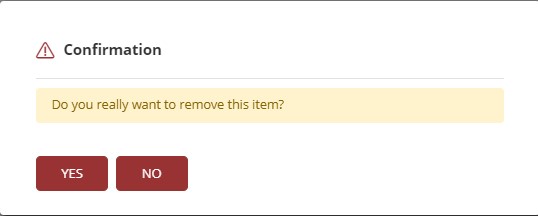
- If you agree and really want to delete the selected group, click Yes.
¶ 3.3. Permissions - Application Group
To configure an Application Group, we will select it and in the ribbon in the Security section, click on  .
.

¶ 3.3.1. Users
In Users, we will select the users to be added to the group. The users added to the group will inherit the group's settings according to the configured profile.
To associate a group with users:
- We will click on
 to display the selected users and the users available for selection.
- only active users associated with the selected application and users that the logged-in user has access permission to will be displayed.
- Check the checkbox of the users you want to add to the group.
- Click on
 .
.
- We will return to the main page, now displaying the users to be added to the group (the user's name and their email will be displayed next to it).
- To finish, click on .
To remove users from a group:
- We will click on to display the selected users.
- The list of users will be displayed, the users already added to the group will have the checkbox checked.
- Uncheck the checkbox of the users you want to remove from the group.
- Click on .
- To finish, click on .
The group's functionalities will only be applied to the user if they have an equivalent profile in the application. If the user's profile is lower than the one configured in the group, they will only receive the functionalities related to their level or lower.
Example:
A user with an analyst profile added to a group with administrator functionalities will only receive the functionalities related to the analyst profile. Even if the group has additional functionalities, they will not be applied to the user.
¶ 3.3.2. Roles
The Roles option will only be displayed in application groups. We will select the roles we want to enable in the group.
To enable roles in a group:
- We will click on to display the selected roles and the roles available for selection.
- A list with the roles and a checkbox for selection will be displayed.
- Check the checkbox of the roles you want to enable for the group.
- Click on .
- We will return to the main page, now displaying the roles to be added to the group.
- To finish, click on .
To disable roles in a group:
- We will click on to display the selected roles.
- A list with the role names and a checkbox for selection will be displayed. The roles already enabled in the group will have the checkbox checked.
- Uncheck the checkboxes of the roles you want to remove from the group.
- Click on .
- To finish, click on .
Roles function as permissions; they will enable or limit access to cube data. This will depend on how it was configured.
¶ 3.3.3. Functionalities
In Functionalities, we have the functionalities that the group will have the autonomy to execute within the selected application. To configure them, we will follow these steps:
- In each profile (Administrator, Manager, and Analyst), click on
 to select the functionalities through a checkbox:
Click to expand the options for the Administrator profile
| Functionality |
|---|
| Select all |
| Manage application security (full)(multi-app) |
| Manage system users |
| Manage system parameters and settings |
| Manage load routines |
Click to expand the options for the Manager profile
| Manager |
|---|
| Select all |
| Create and view dashboards/maps |
| Create and view data entry forms |
| Create and view profitability analysis |
| Create and view what-if |
| Unlock cube locked by another user |
| Execute data load |
| Manage lane structure |
| Manage data table structure |
| Manage trigger structure |
| Manage process structure |
| Manage application structure/model |
| Manage application security |
| Manage formulas |
| Manage Workflow |
| Manage XBRL |
| Enable formula editing |
| Enable formula execution |
| For instance |
| Impersonate action |
| Pinch instance |
| Publish process |
| Synchronize management reports |
| Sysphera Excel Add-In with all functionalities |
| Transfer instance responsibility |
| View process |
| New scenario wizard |
| Simulation wizard |
Click to expand the options for the Analyst profile
| Analyst |
|---|
| Select all |
| Act in the workflow with any type of task |
| Execute formulas in the form |
| Export XBRL |
| Allow reading comments in intermediate level cells |
| Allow reading and writing comments in intermediate level cells |
| View dashboard |
| View details |
| View formula |
| View data entry forms |
| View management reports |
-
To remove functionalities, we can uncheck the checkbox to remove a specific functionality, or click on
 to remove all functionalities from a profile.
 -
Click on
. -
To finish, click on
.
Users with a lower profile than defined in the group will not receive functionalities that are in profiles above theirs.
¶ 3.3.4. Permissions
In Permissions, we will define which objects the group can view in the explorer. We can define whether the group will have read and write or read-only permissions on these objects. We will follow these steps:
- We will click on to display the objects available in the application. The list shows the object's name, path, and a box for selecting the permission.
- Check the checkbox of the objects you want to enable permissions for the group, or uncheck those you want to disable.
- Next to the object's name, we will have its path and a box for selecting the access permission the group will have
 (Read-Only or Read-Write).
 - Click on
 to complete the selection.
 - Click on .
- To finish, click on .
The available objects will be those of the Application selected in the group and also objects that the logged-in user has access permission to.
¶ 3.3.5. Parameters
In Parameters, we can define security standards for the group regarding passwords and login.
- When accessing the Parameters section, we will have:
- Inactivity period after the last login when the password needs to be reset (days).
- Time to expire the password. *
- Password history check. *
- Reset password (switch button). *
- Session expiration interval. **
- Multi-factor authentication (none or email). ***
For more information about the mentioned parameters, access the links:
* - Password Reset.
** - Session Timeout.
*** - Two-Factor Authentication.
- After completing the parameter settings, click on .
- To finish, click on .
We have a level of granularity that makes the parameter settings applied hierarchically, with the configuration priority being USER → GROUP → SYSTEM.
¶ 3.4. Permissions - Global Group
To configure a Global Group, we will select it and in the ribbon in the Security section, click on .
¶ 3.4.1. Users
In Users, we will select the users to be added to the group. The users added to the group will inherit the group's settings according to the profile configured in the user's registration.
To associate a group with users:
- We will click on to display the selected users and the users available for selection.
- only users that the logged-in user has access permission to will be displayed.
- Check the checkbox of the users you want to add to the group.
- Click on .
- We will return to the main page, now displaying the users to be added to the group (the user's name and their email will be displayed next to it).
- To finish, click on .
To remove users from a group:
- We will click on to display the selected users.
- The list of users will be displayed, the users already added to the group will have the checkbox checked.
- Uncheck the checkbox of the users you want to remove from the group.
- Click on .
- To finish, click on .
Only the permissions defined in the group to which the user is added will be applied to the user. The global group ignores the user's application profile.
¶ 3.4.2. Functionalities
In Functionalities, we have the functionalities that the global group will have the autonomy to execute. To configure them, we will follow these steps:
- In each profile (Administrator and Manager), click on to select the functionalities through a checkbox:
Click to expand the options for the Administrator profile
| Functionality |
|---|
| Select all |
| Manage application security (full)(multi-app) |
| Manage system users |
| Manage system parameters and settings |
| Manage load routines |
Click to expand the options for the Manager profile
| Manager |
|---|
| Select all |
| Create and view dashboards/maps |
| Create and view data entry forms |
| Create and view profitability analysis |
| Create and view what-if |
| Unlock cube locked by another user |
| Execute data load |
| Manage lane structure |
| Manage data table structure |
| Manage trigger structure |
| Manage process structure |
| Manage application structure/model |
| Manage application security |
| Manage formulas |
| Manage Workflow |
| Manage XBRL |
| Enable formula editing |
| Enable formula execution |
| For instance |
| Impersonate action |
| Pinch instance |
| Publish process |
| Synchronize management reports |
| Sysphera Excel Add-In with all functionalities |
| Transfer instance responsibility |
| View process |
| New scenario wizard |
| Simulation wizard |
-
To remove functionalities, we can uncheck the checkbox to remove a specific functionality, or click on
 to remove all functionalities from a profile.
 -
Click on
. -
To finish, click on
.
The functionalities available for selection in a global group are only for Managers and Administrators.
¶ 3.4.3. Permissions
In Permissions, we will define which objects the group can view in the explorer. We can define whether the group will have read and write or read-only permissions on these objects. We will follow these steps:
- We will click on to display the objects available in the system. The list shows the object's name, path, and a box for selecting the permission.
- Check the *checkbox of the objects you want to enable permissions for the group, or uncheck those you want to disable.
- Next to the object's name, we will have its path and a box for selecting the access permission the group will have (Read-Only or Read-Write).
- Click on to complete the selection.
- Click on .
- To finish, click on .
The available objects will be those that the logged-in user has access permission to.
¶ 4. Q&A
Frequently Asked Questions
1. What is the difference between an Application Group and a Global Group?
The difference is in the scope of objects each group controls.
Application Groups: define security for objects in each specific application (cube forms, data forms, dimensions, hierarchies, etc.).
Global Groups: define security for application-independent objects (folders, users, data tables, workflows, triggers, etc.).
2. Why use groups instead of defining permissions individually?
Groups provide a simple way to organize users and apply permissions in bulk.
Instead of setting permissions for each user individually, you create a group with the required permissions and add users to it, making security management easier.
3. What permissions do I need to create groups?
To create groups in T6, the user needs Administrator functionalities: Manage application security (full) (multi-app) and Manage system users, and Manager: Manage application security.
4. Can I access any group in the system?
No, a user will only have access to groups they own or for which they have specific permissions.
5. How do I define whether a group is Application or Global during creation?
During group creation, there is an application selection dropdown.
If you fill in the Application field during creation, the group will be defined as an Application Group.
If you leave it blank, it will be a Global Group.
6. Can I change a group's application after creating it?
No, after creating and saving an application group, it is not possible to change the selected application. You need to create another group.
7. What happens if an Analyst user is added to a group with Administrator functionalities?
If a user with an Analyst profile is added to a group with Administrator functionalities, the user will only receive functionalities related to their own profile (Analyst) or lower, even if the group has higher-level functionalities. Administrator functionalities will not be applied.
8. How do roles work in groups?
Roles in groups work as permissions that enable or limit access to cube data, depending on how they were configured. They are specific to application groups.
9. Which users appear as available to add in an application group?
For application groups, only active users associated with the selected application and users for whom the logged-in user has access permission will be displayed.
10. Which users appear as available to add in global groups?
For global groups, only users for whom the logged-in user has access permission will be displayed, regardless of application.
11. What permission types can I grant to objects?
Through groups, users can grant Read-Only or Read-Write permissions for available objects.
12. Which objects are available to configure permissions?
For application groups: objects from the selected application that the logged-in user has permission to access.
For global groups: system objects that the logged-in user has permission to access.
13. How does the parameter configuration hierarchy work?
Configuration has hierarchical priority: USER → GROUP → SYSTEM.
Settings at the user level override group settings, which in turn override system settings.
14. Can I recover a group after deleting it?
No, deleted groups cannot be recovered regardless of type. Deletion is permanent.
15. How do I delete a group?
To delete a group in T6, follow the steps below:
- In the main T6 menu, access Access Control.
- Select the Group option.
- You will be directed to Explorer with objects filtered by groups.
- Select the group you want to delete.
- In the ribbon, under the Organize section, click the Delete button.
- A popup will open to confirm the action.
- If you agree and really want to delete the selected group, click Yes.