¶ 1. Overview
Every T6 client has a unique identification code (Customer Code), which is used to track the licenses and product versions available for each client. The update and synchronization of licenses can be done quickly and intuitively using this code directly through the T6 interface.
¶ 2. Customer Code
When using the customer code, T6 services list the versions available for that code and the licenses available for each version.
To update via the T6 installer, follow the steps below:
- In Installation Type, select the option Update previous installation and click Next;
- In License Agreement, carefully read the content of the T6 Enterprise Software License Terms. Then, check the option I accept the terms in the license agreement and click Next;
- In Installation to be Updated, select the installation you want to update and click Next;
- In Customer Information, we have two options: Customer Code and License File;
- Customer Code: It is an Internal Identification Code, unique to each customer. By entering the customer code and clicking Find, the license information linked to the entered code will be displayed.
If you do not know your Customer Code, contact the Tech6 Sales Department;
In License Information, the following data will be displayed if the Customer Code is valid:
The license is valid.

Licensed to (LICENSED COMPANY NAME)

License type: PERMANENT or TEMPORARY

Planning License: (Number of users available with planning license)
  Administrators: 1
  Managers: 2
  Analysts: 22
  Planners: 0
  Total: 25 users.

Consolidation License: (Number of users available with consolidation license)
  Administrators: 1
  Managers: 2
  Analysts: 22
  Planners: 0
  Total: 25 users.

Excel enabled? Yes
Excel license type: PERMANENT

Dashboard enabled? Yes
Dashboard license type: PERMANENT
If the provided Customer Code is not valid, the license has expired, or there is no license for the version to be updated, the following message will be displayed: You don't have a license for xx.x. In these cases, it is necessary to contact the Account Executive to readjust your license contract.
¶ 3. Update
¶ 3.1. Application
Through the application, we have the integration parameter Customer Code.
If your license is invalid or outdated, and you have an active Customer Code with a valid license, this change can be made through the interface using the Customer Code parameter.
- In the T6 main menu, under Settings, access the Parameters option;
- In the parameters panel, select the Integration option;
- Locate Customer Code and enter the code in the field;
- Again in the T6 main menu, under Settings, select the Licenses option;
- A side panel will open with the licenses, showing Version, Type, and Expiration Date;
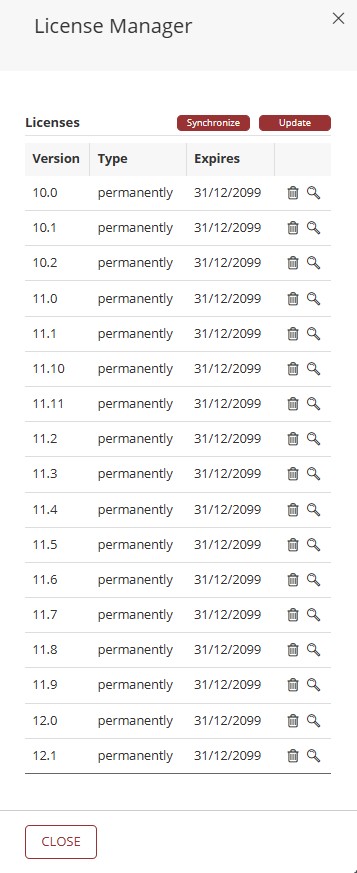
- Click Synchronize. T6 services will access the server, download the license, and provide the available versions;
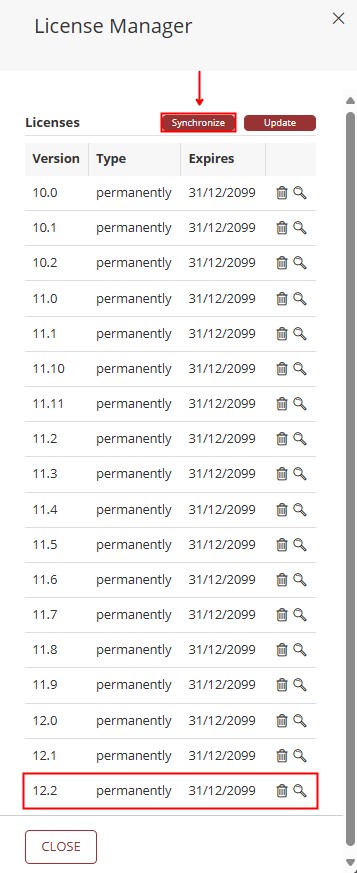
The Synchronize button will only work if the Customer Code parameter is filled in with a valid customer code;
- You can view the license version details by clicking
 ;
;
- The following display will be shown:
- You can copy the displayed content by clicking
 ;
; - You can also download the License File by clicking
 . A file named license.xml will be downloaded;
Whenever a new License is made available, synchronization will be required;
¶ 3.2. License File
If you want to update your license, this update can be done through the interface using the License File.
- In the T6 main menu, under Settings, access the Licenses option;
- A side panel will open with the licenses, showing Version, Type, and Expiration Date;
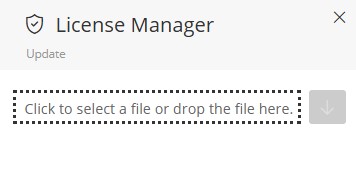
- Click Update. A field for file upload will be displayed;
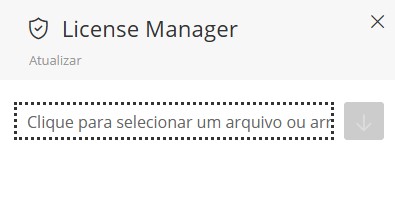
-
Locate your
license.xmlfile in your computer's file explorer and insert it in the displayed field; -
After inserting the file, the license will be updated and the details will be displayed;
- The following display will be shown:
¶ 3.3. Swagger
Let's access Swagger to list the application's APIs.
- In the License group, we will have the
/api/license/synchronizeAPI of type GET; - Select the API and click Try it out;
- After clicking Try it out, click Execute
This procedure performs the same action shown in the previous topic, but without requiring a user to be logged into the application. T6 services will access the server, download the license, and provide the available versions.
Whenever a new License is made available, synchronization will be required;
¶ 4. Q&A
Frequently Asked Questions
1. What is the Customer Code and where can I find it?
The Customer Code is a unique identification code for each T6 client, used to track available licenses and versions.
If you do not know your Customer Code, contact the Tech6 Sales Department.
2. What happens if I enter an invalid Customer Code?
If an invalid Customer Code is entered, the message You don't have a license for xx.x will be displayed.
In this case, it is necessary to contact the Account Executive to readjust your license contract.
3. What license types does T6 offer?
In T6, the available license types are Temporary and Permanent.
Temporary License: has a defined validity period and must be renewed after expiration.
Permanent License: does not expire and can be used indefinitely, as long as it is linked to a valid Customer Code.
Specific information about duration and limitations should be confirmed with the sales department.
4. What are Planning and Consolidation licenses?
Planning and Consolidation licenses are two distinct license types with different user levels (Administrators, Managers, Analysts, and Planners).
Each type has a specific total of available user profiles.
5. How can I update my license if it has expired?
You can update your license using three methods:
- Through the T6 installer using the Customer Code;
- Through the application interface by synchronizing with the code;
- By manually uploading the
license.xmlfile.
6. How often do I need to synchronize licenses?
License synchronization must be done whenever a new license is made available, to access the most recent versions.
7. What does "Excel enabled" and "Dashboard enabled" mean in the license information?
In the license information, Excel enabled and Dashboard enabled are additional features that may be included in your license.
8. The Synchronize licenses button is not working. What could it be?
The Synchronize button will only work if the Customer Code parameter is filled with a valid code.
Check whether the code was entered correctly and try synchronizing again.
9. How can I check the details of my current license?
To check your current license details in T6, follow these steps:
- In the T6 main menu, access Settings;
- Select the Licenses option;
- A side panel will open displaying available licenses, including Version, Type, and Expiration Date;
- Click the magnifying glass icon next to the desired license to see more details, such as the number of users available per profile and enabled features.
- You can copy the information and also download the
license.xmlfile by clicking the download icon.
10. Where is the license file saved when I download it?
The license file is downloaded with the name license.xml in your browser's default downloads directory.