¶ 1. Overview
Security Transfer is a T6 feature that allows you to copy permissions, groups, roles, features, and parameters from one user to one or more users quickly and efficiently. This feature provides two options: add the source user's permissions to the destination users' existing permissions, or fully replace the destination users' permissions with the source user's permissions.
-
Add to the Destination: Destination users will keep their original security items and receive the source user's new options.
-
Replace at Destination: All destination user's security items will be removed and replaced by the source user's items.
The transfer includes all security like:
- Groups (local and global).
- Applications.
- Roles.
- Features.
- Permissions.
- Parameters.
¶ 1.1. Prerequisites
To access and use the Security Transfer feature, the user must have the Manage User Security Transfer feature enabled in the Global Group.
Only users with this feature will be able to see and use the Security Transfer button in the interface.
¶ 2. Accessing Security Transfer
Accessing the Security Transfer feature without selecting a user:
- In the T6 main menu, go to Explorer.
- With Explorer open, click Security Transfer.
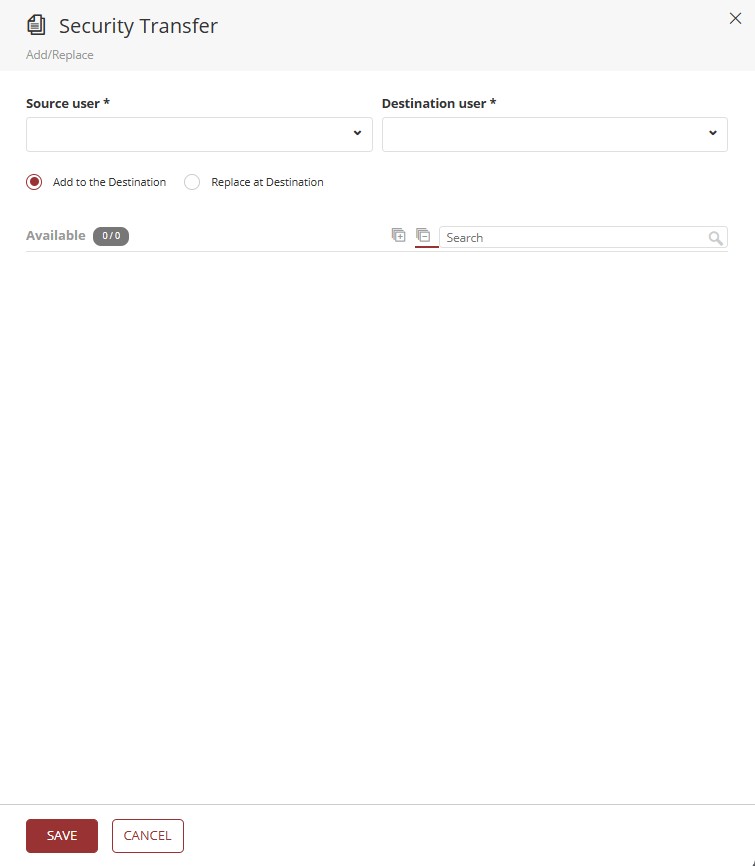
- A side panel will open where we will select source and destination users, as well as the options to be transferred.
¶ 3. Configuring the Transfer
¶ 3.1. Security Transfer Interface
When you open the Security Transfer panel, you will find the following elements:
¶ 3.1.1. Source User
Field where you select the user whose permissions will be copied. If you selected a user in Explorer before opening the screen, this field will be automatically filled with that selected user.
¶ 3.1.2. Destination User
Multi-select field where you choose one or more users who will receive the selected options. This field will not show the user selected in the "Source User" field to avoid conflicts.
It is important to note that users selected in one field will not be available for selection in the other field, ensuring operation integrity.
¶ 3.1.3. Transfer Mode
The system provides two transfer options:
-
Add to the Destination: Destination users will keep their original security items and receive the source user's new options.
-
Replace at Destination: All destination user's security items will be removed and replaced by the source user's items.
By default, the Add to the Destination option is selected when opening the panel.
¶ 3.1.4. Security Items Tree
The security items tree displays all security items assigned to the selected source user. The structure is organized as follows:
All (root item)
- Groups: List of the user's groups, sorted alphabetically.
- Applications: List of the user's applications, sorted alphabetically.
- Roles: List of the user's roles, sorted alphabetically.
- Features: Shows only applications (not child items), with "Global" as the first item, followed by other applications in alphabetical order.
- Permissions: Does not show child items;
- Parameters: Does not show child items;
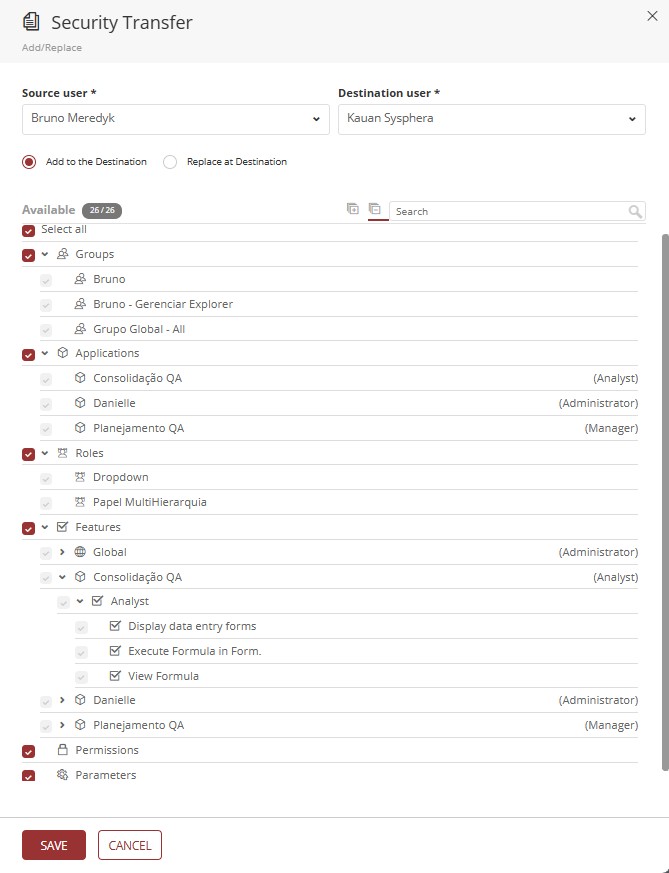
You can expand or collapse tree nodes to view or hide security items, but item selection can only be performed on parent nodes; child nodes cannot be selected individually.
¶ 3.2. Selecting Items for Transfer
After selecting a source user, the security items tree will be automatically populated. To configure which items will be transferred:
- Expand tree nodes by clicking the expand icons.
- Check or uncheck item checkboxes (checkboxes) to include or exclude them from the transfer.
- Use the "All" item at the top of the tree to select or deselect all items at once.
- Items such as "Permissions" and "Parameters" cannot be expanded, but they can be selected or deselected.
At least one security item must be selected for the transfer to be performed.
¶ 3.3. Changing the Source User
When you change the user selected in the "Source User" field:
- The security items tree is automatically updated.
¶ 4. Validations and Restrictions
¶ 4.1. Field Validations
Before performing the transfer, the system carries out the following validations:
¶ 4.1.1. Required Fields
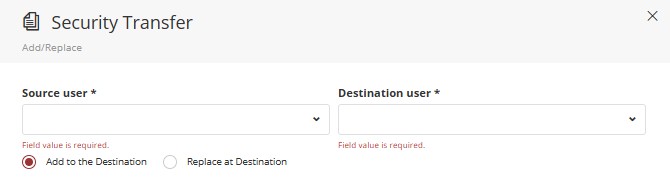
- Source User: Must be filled in.
- Destination User: Must have at least one selected user.
If any of these fields is empty when clicking "Save", the system will display a message informing that the field must have a value, and the operation will be aborted.
¶ 4.1.2. Selected Security Items
At least one security item must be selected in the tree. If no item is selected, the system will display a validation message asking you to select at least one item.

¶ 4.2. Profile Validation
The system checks whether destination users have planning and/or consolidation profiles compatible with the source user.
Profile Rule: Destination users must have profiles equal to or less restrictive than the source user.
Profile Hierarchy (from least to most restrictive):
- Administrator.
- Manager.
- Analyst.
- Planner.
Validation example:
- Source user: Manager
- Valid destination users: Manager and Administrator
- Invalid destination users: Analyst and Planner
If any destination user does not meet this requirement, the system will remove the selection of security items that cannot be transferred to that user.

If there are multiple destination users selected and at least one of them is incompatible, the profile validation will be applied to all destination users, removing the selected security items for all of them. The profile validation is always checked based on the user with the most restrictive profile.
¶ 4.3. Locked Cube Validation
This validation is applied only when the Replace at Destination option is selected.
If an application object is not selected in the security tree and one or more destination users are editing that application's cube (for example, editing a dimension), the cube will be locked and the operation cannot proceed.
In this case, the system will display an error message for each user who has the cube locked:
"It is not possible to remove application "xxx" from user "xxx", because it blocked the cube"
The operation will be aborted until the cubes are unlocked or the users are removed from the selection.

¶ 5. Running the Transfer
¶ 5.1. Transfer with Addition
When the Add to the Destination option is selected:
- Fill in the "Source User" field.
- Select one or more users in the "Destination User" field.
- Select the desired security items in the tree.
- Verify that all validations are met.
- Click the Save button.
The system will perform the following actions:
- It will add to destination users all selected security items that the source user has and destination users do not yet have.
- Existing security items on destination users will be kept.
- The screen will close automatically after the operation is completed.
¶ 5.2. Transfer with Replacement
When the Replace at Destination option is selected:
- Fill in the "Source User" field.
- Select one or more users in the "Destination User" field.
- Select the desired security items in the tree.
- Verify that all validations are met (including locked cube validation).
- Click the Save button.
The system will perform the following actions:
- It will remove all security items from destination users.
- It will add selected security items from the source user to destination users.
- Destination users will have exactly the same security items as the source user (only the selected ones).
- The screen will close automatically after the operation is completed.
Warning: The replacement option completely removes existing permissions from destination users. Make sure this is really the intended operation before confirming.
¶ 5.3. Canceling the Operation
To cancel the security transfer:
- Click the Cancel button in the panel.
- The screen will close without making any changes.
- No modifications will be made to users permissions.
¶ 6. Use Cases
¶ 6.1. New Team Member with Similar Role
Scenario: A new analyst joins the company and should have the same permissions as an existing analyst.
Solution:
- Select the existing analyst as "Source User".
- Select the new team member as "Destination User".
- Choose the "Replace at Destination" option.
- Select "Select All" in the security tree or choose specific items.
- Run the transfer.
¶ 6.2. Role Change
Scenario: A user changes department and needs to have exactly the same permissions as that department's manager.
Solution:
- Select the department manager as "Source User".
- Select the user changing roles as "Destination User".
- Choose the "Replace at Destination" option.
- Select "Select All" in the security tree.
- Run the transfer.
This operation will remove all old permissions from the user and replace them with new ones.
¶ 6.3. Mass Configuration
Scenario: An entire team needs to receive additional permissions to access a new system module.
Solution:
- Set up a template user with all required permissions.
- Select this user as "Source User".
- Select all team members as "Destination Users" (multi-select).
- Choose the "Add to the Destination" option.
- Select only the specific items related to the new module in the tree.
- Run the transfer.
¶ 6.4. Permission Standardization
Scenario: Several analysts have inconsistent permissions and need to be standardized.
Solution:
- Define a user with the correct set of permissions as "Source User".
- Select all analysts who need standardization as "Destination Users".
- Choose the "Replace at Destination" option.
- Select "Select All" or only the categories that need standardization.
- Run the transfer.
¶ 7. Best Practices
¶ 7.1. Planning
- Before performing a replacement transfer, document current permissions of destination users.
- Create a template user for each common profile in the organization to facilitate future transfers.
- Carefully review the security items tree before running the transfer.
¶ 7.2. Validation
- Always verify user profiles before running the transfer.
- In a replacement transfer, confirm that no user is editing cubes that will be affected.
- Test the transfer with a single destination user before applying it to multiple users.
¶ 8. Advanced Behaviors and Detailed Rules
This section provides additional technical details and specific rules observed during Security Transfer operations.
¶ 8.1. Security Tree Selection Rules
¶ 8.1.1. Application Items: All-or-Nothing
When an application is selected in the security tree, its child items (application bindings and configurations) are automatically included and cannot be individually deselected. The application node can be selected or deselected as a whole, but the individual sub-items beneath it remain locked once the parent is selected.
This design enforces consistency: either the user's complete application configuration is transferred, or nothing is transferred for that application. Partial application transfers are not supported.
You can select or deselect an entire application, but you cannot cherry-pick individual child items within it.
¶ 8.1.2. Permissions and Parameters: No Expansion by Design
The Permissions and Parameters nodes in the security tree do not offer expand/collapse functionality. This is intentional behavior designed for performance in large-scale environments. In organizations with many users and forms, expanding individual permission entries would make the transfer interface difficult to manage.
The transfer follows the same all-or-nothing principle for these categories:
- If the source user has permissions/parameters and they are selected, all of them are transferred.
- If the source user has no permissions/parameters and Replace at Destination is active, all existing permissions/parameters on destination users are removed.
¶ 8.1.3. Empty Category Warning Icon
When the Replace at Destination mode is selected and the source user has no items in a given category (e.g., no applications, no features, or no parameters), the system displays a warning icon (⚠) next to that category in the security tree.
This icon warns that executing the transfer will remove all items of that category from destination users. The icon appears only when the source has no items for a category and the replace mode is active.

Pay close attention to warning icons before confirming a replacement transfer — they indicate that existing data on destination users will be permanently deleted.
¶ 8.2. Profile Validation — Technical Details
¶ 8.2.1. Tooltip Messages for Blocked Items
When a destination user has a more restrictive profile than the source user, the system visually blocks incompatible applications and features in the tree. Hovering over a blocked item displays a tooltip message explaining that the transfer cannot be performed because the destination user's profile is more restrictive. Attempting to check a blocked checkbox also triggers this tooltip, reinforcing the restriction.
¶ 8.2.2. Profile Evaluation for Global Features
For global features (not tied to a specific application), the system evaluates the destination user's most permissive global profile from the user registration record — not an application-specific profile. This ensures the correct permission level is determined regardless of application context.
¶ 8.2.3. Profile Evaluation for Application-Specific Features
For features linked to a specific application, the system evaluates the user's profile for that specific application link. If the destination user has a more restrictive profile in that application, those features will be blocked and unavailable for selection.
¶ 8.2.4. Application Profile Upgrade on Replace
A special scenario occurs when:
- The destination user is an Administrator at the system level.
- The destination user has a more restrictive profile in a specific application (e.g., Analyst or Planner for that application).
- The source user has an Administrator profile in that application.
- The Replace at Destination mode is selected.
In this case, the system will upgrade the destination user's application profile to match the source user (Administrator). The user's administrator-level system profile permits this upgrade to proceed without a validation error.
A replace transfer from an Administrator source user will elevate the destination user's application profile to Administrator, even if the destination user previously had a more restricted profile in that application.
¶ 8.3. Object Ownership Behavior
Object ownership (the "owner" designation in the Explorer) is not stored in the permissions table and is therefore not transferred by the Security Transfer feature. Only explicit entries from the permissions table are copied.
Practical implications:
- Objects where the source user is the owner but has no explicit permission entry will not become accessible to destination users after the transfer.
- The source user remains the owner of those objects after the transfer is complete.
- If the destination user needs access to objects owned by the source user, the source user must explicitly share those objects by adding the destination user to the object's permissions.
When comparing the security configuration between source and destination users after a transfer, it is normal to see differences in the Permissions section if the source user owns objects without explicit permission entries. This is expected behavior and does not indicate an error.
¶ 8.4. Minimum Configuration for Destination Users
A destination user requires only minimal setup before receiving a security transfer:
- The user account must exist in the system.
- The user must have at least a system profile configured (planning and/or consolidation profile).
No applications, roles, features, permissions, or parameters need to be pre-configured on the destination user. The Security Transfer will set up all selected security items from scratch.
Security Transfer is ideal for onboarding new users: create the account, assign a basic system profile, and use Security Transfer to replicate the complete security configuration from an existing reference user.
¶ 9. Q&A
Frequently Asked Questions
1. What is the difference between "Add to the Destination" and "Replace at Destination"?
The Add to the Destination option keeps all existing permissions of destination users and adds the new permissions from the source user. The Replace at Destination option completely removes all current permissions of destination users and replaces them with the selected permissions from the source user.
2. Can I transfer permissions to multiple users at once?
Yes, the "Destination User" field allows multi-selection, enabling you to transfer permissions from one source user to multiple destination users simultaneously.
3. Can I select only specific permissions to transfer?
Yes, you can use the security items tree to individually select which groups, applications, roles, features, permissions, and parameters you want to transfer. You don't need to select all available items.
4. What happens if I try to transfer permissions from an Administrator to a Planner?
The system will prevent the operation and display an error message. Profile validation requires that the destination users have profiles that are equal or less restrictive than the source user.
5. Why can't I run the transfer even with all fields filled?
Check if:
- At least one security item is selected in the tree.
- Destination users have profiles compatible with the source user.
- If using "Replace at Destination", no destination user is editing cubes that will be affected.
6. Can I undo a security transfer after execution?
There is no native undo feature. Therefore, it is recommended to document users' current permissions before performing a replacement transfer, especially when applying to multiple users.
7. Why does the source user appear disabled in the "Destination User" field?
This is a security measure to avoid conflicts. A user cannot be simultaneously source and destination of the same transfer, ensuring operation integrity.
8. When should I use the "Replace at Destination" option?
This option is ideal for role changes, permission standardization between users, or when you need to ensure a user has exactly the same permissions as another, without keeping any old permissions.
9. What does the message "Cube is locked by the user" mean?
This message appears when you try to remove an application (using "Replace at Destination") from a user who is currently editing that application's cube. The operation cannot proceed until the user finishes editing or is removed from the destination selection.
10. What is the minimum configuration required for a destination user before running a security transfer?
The destination user only needs to exist in the system and have a system profile (planning and/or consolidation) configured. No applications, roles, features, permissions, or parameters need to be pre-configured. The Security Transfer will handle setting up all selected items.
11. Will the destination user gain access to objects owned by the source user?
No. Object ownership is not stored in the permissions table and is therefore not transferred by this feature. Objects where the source user is the owner but has no explicit permission entry will not become accessible to the destination user. The source user must explicitly grant access to those objects separately.
12. Why can't I deselect individual child items inside an Application in the security tree?
Application items follow an all-or-nothing rule. When an application is selected, its child configuration is included as a complete unit and individual sub-items cannot be deselected. You can include or exclude the entire application, but partial application transfers are not supported.
13. Why don't Permissions and Parameters show individual items that can be expanded in the tree?
This is intentional behavior designed for performance in large environments. Organizations with many users and forms would find the interface very difficult to manage if every individual permission or parameter were listed. Permissions and parameters are therefore handled as complete sets — either all are transferred or none.
14. What does the warning icon (⚠) next to a category in the security tree mean?
The warning icon appears when the Replace in Recipient mode is active and the source user has no items in that category. It indicates that executing the transfer will remove all existing items of that category from destination users. Always review warning icons carefully before confirming a replacement transfer.