¶ 1. Overview
The data cleanup tool's main function is to remove all data within a given scope.
¶ 1.1. Prerequisites
To use this tool, the user must have the following Manager Feature enabled under Permissions:
It is also necessary to enable the Preview Feature:
¶ 2. Usage
1. In the T6 main menu, go to the Scenario section.
2. Select the Clear Data option.
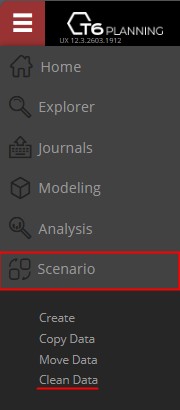
- A side panel will open;
3. In the panel, a dropdown is displayed for selecting the application. Click the dropdown and select the Application.
- When an application is selected, the existing dimensions in the selected application will be displayed;
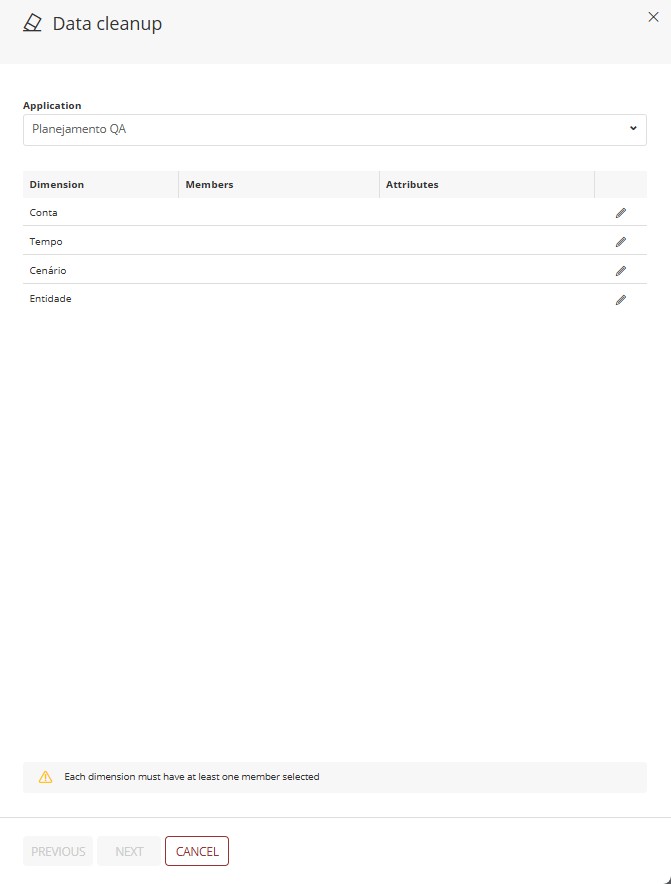
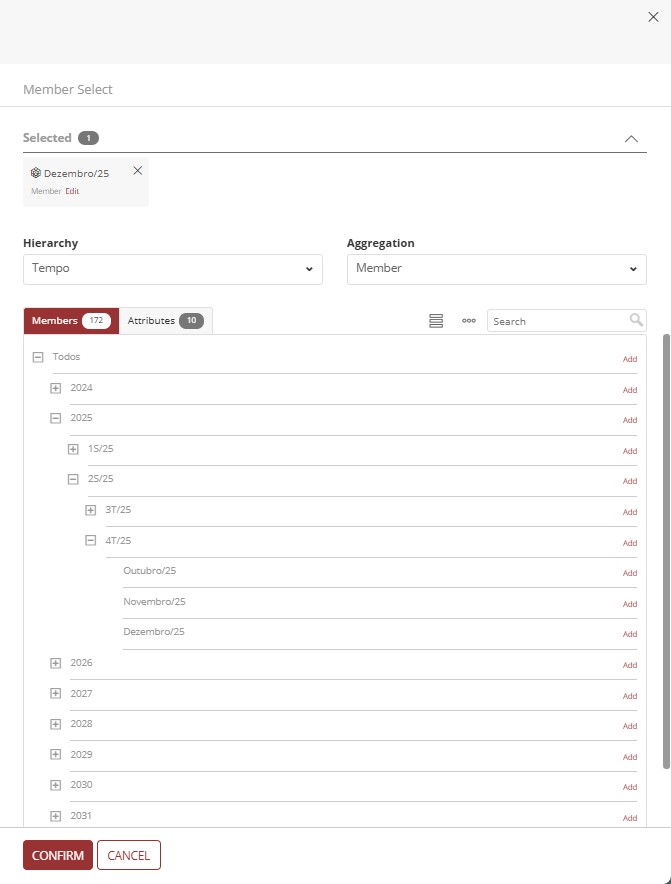
4. By clicking the pencil icon next to the dimension name, the member selection step will be displayed.
You must define the entire scope for cleanup, requiring at least 1 member to be defined for each dimension. To do this, on the Member Selection screen, click Add, select the members and attributes, and confirm. Repeat this procedure for all dimensions.
5. Review the defined scope and click Next;
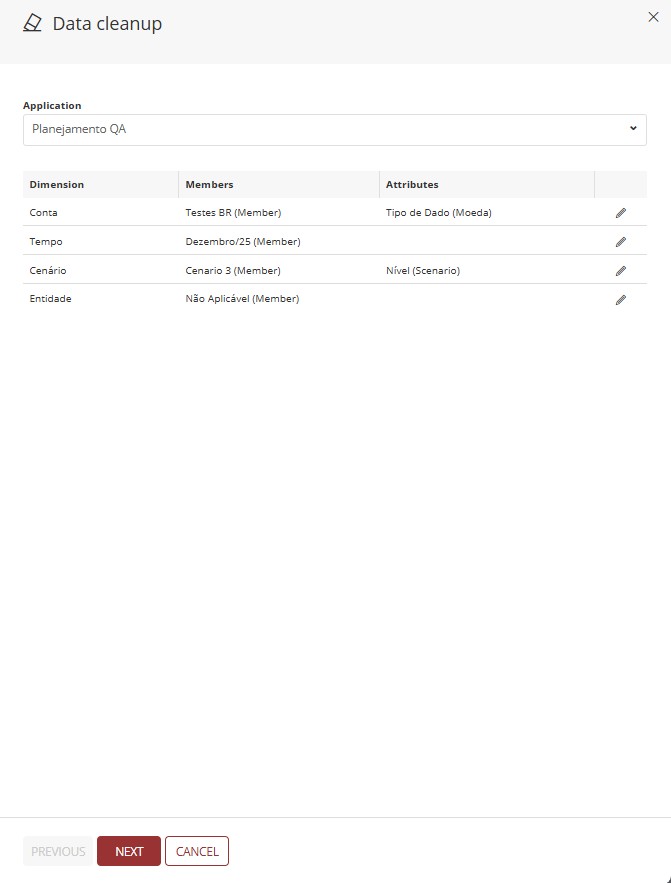
The Next button will only be enabled after the members for each dimension have been defined, provided the selected members are valid.
If you try to add a closed month as a member of the time dimension, a message will be displayed preventing progress:

6. By clicking Next, you will be directed to the Summary step, where you will perform the final review before applying data cleanup to the defined scope. To conclude, click Save.
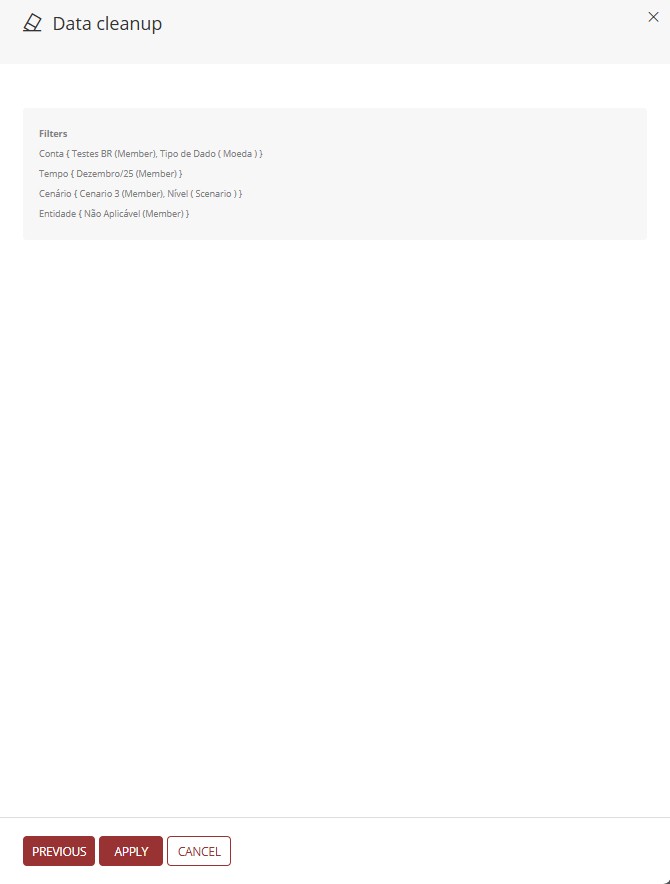
- The progress of the request can be monitored through notifications.

To confirm the cleanup, the data can be viewed through Forms within T6.
¶ 3. Q&A
Frequently Asked Questions
1. What permissions are required to use the Data Cleanup tool?
The user needs to have the Manage structure/model of the application manager feature enabled in Permissions, as well as the Preview Feature New Scenario Analysis activated.
2. Is it possible to clean data from multiple applications at the same time?
No, the tool works with one application at a time. It is necessary to select a specific application and define the cleanup scope for that application before processing another.
3. Is it mandatory to select members in all dimensions?
Yes, it is necessary to define at least 1 member for each dimension of the selected application. The Next button will only be enabled after members have been defined for all dimensions.
4. What happens if I try to select a closed month in the time dimension?
The system will display a warning message, preventing progress. It is not possible to include closed months in the data cleanup scope.
5. How can I track the progress of the data cleanup?
The progress of the request can be monitored through T6 notifications. A success notification will be displayed when the cleanup is completed.
6. Is it possible to undo a data cleanup after executing it?
No, data cleanup is an irreversible operation. Therefore, it is essential to carefully review the defined scope in the Summary step before clicking Save.
7. How can I confirm that the data was actually cleaned?
To confirm the cleanup, the data can be viewed through Forms within T6. Check the scope defined in the cleanup and confirm that the values were removed.
8. Can I select specific attributes for cleanup or only members?
In the Member Selection screen, it is possible to select both members and attributes. Click Add and choose the desired members and attributes for each dimension.
9. What happens if there is an error during data cleanup?
If any error occurs during the process, you will be notified through the T6 notification system. The message will indicate the nature of the problem so it can be corrected.
10. Does data cleanup affect only values or also the structure?
Data cleanup removes only the values within the defined scope. The application structure, including dimensions, members, and attributes, remains intact.