¶ 1. Overview
The actions performed in T6 Scenarios are recorded through the Analysis section of the main menu, such as simulations, data copying between scenarios, and scenario data cleaning. T6 stores all actions performed by the user for creating, copying, cleaning, moving, or simulating in the scenario.
¶ 1.1. Prerequisites
To use this tool, the user must have the following Manager Functionality enabled in Permissions:
It is also necessary to enable the Preview Feature:
¶ 2. Functionalities
Through the Scenario History tool, we can view a detailed history of the actions performed from scenario creation, simulation, data copying, data cleaning, and rollback, being able to select any of the records in the listing to view its details. From this screen, we can also roll back an action displayed in the listing, as long as it does not contain errors and is not of the "rollback" type.
¶ 3. Usage
To use the Scenario History, follow these steps:
1. In the T6 main menu, expand the Analysis section;
2. In the Analysis section, select the Scenario History option;
- By clicking on Scenario History, a new window will open in T6;
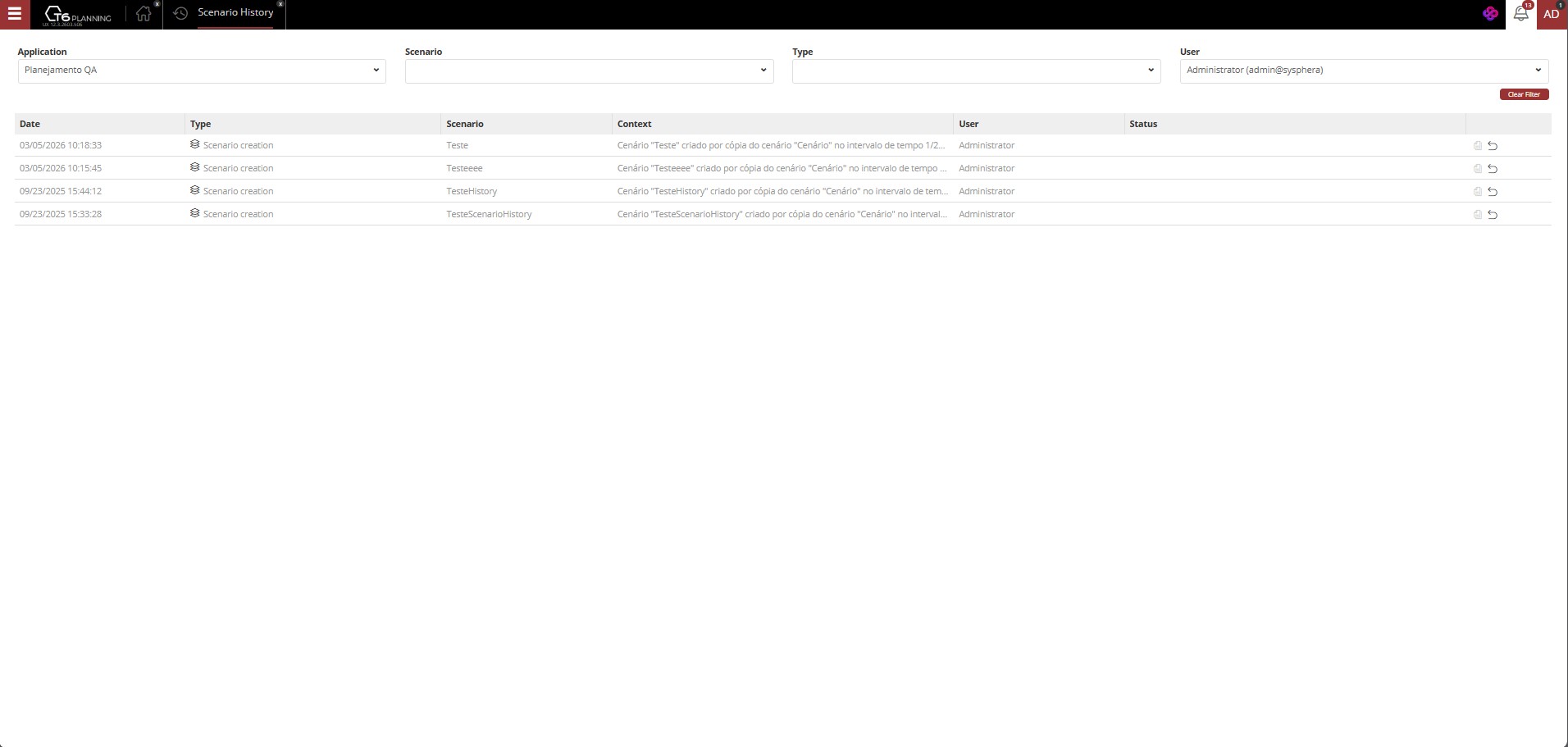
- A listing will be displayed showing all actions performed in the scenarios, with the following structure:
| Date | Type | Scenario | Context | User | Status | Actions |
|---|---|---|---|---|---|---|
| Displays the date and time the action was performed | Displays the type of action performed | Displays the affected scenario | Displays the action performed detailing the members involved | Displays the user who performed the action | Displays the status of the performed action: Error, Success... | We have 2 buttons. Copy (available in case of error). Copy (available in case of error). Rollback (reverts the action performed in the selected line, not displayed in case of error) Rollback (reverts the action performed in the selected line, not displayed in case of error) |
-
We also have the following filtering options for data display:
-
Application: dropdown to select one of the existing applications in T6;
-
Scenario: dropdown to select a specific scenario. If the Application field is left blank, all scenarios with records in the listing will be displayed. If an Application is selected, the scenarios displayed for selection will be limited based on the scenarios existing in the selected application;
-
Type: dropdown to select the type of action performed in the scenario, with the following options:
-
Scenario creation: displays only scenarios created using the scenario creation tool in the Analysis section of the main menu;
-
Simulation: displays only scenarios altered using the scenario simulation tool in the Analysis section of the main menu;
-
Data copy: displays scenarios that copied data from another scenario using the Scenario Data Copy tool in the Analysis section of the main menu;
-
Data cleaning: displays scenarios that had data removed using the Scenario Data Cleaning tool in the Analysis section of the main menu;
-
Rollback: displays only rollback actions performed from this screen;
-
Rolled back records also appear in the filtering, following the type that originated the record.
- User: dropdown to select a specific user;
-
Filtering can be performed individually or by combining the above options.
After performing a rollback, the rollback record will be created and displayed in a new line. The rolled back record will continue to be displayed in the listing, but with its data crossed out:

3. To view the details of a specific record, double-click the selected line;
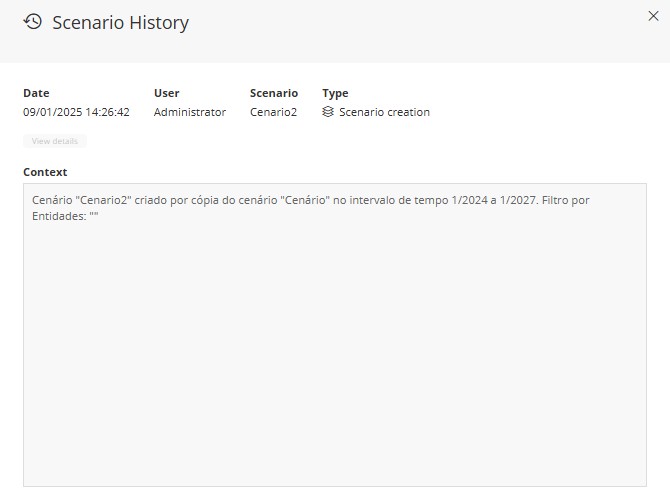
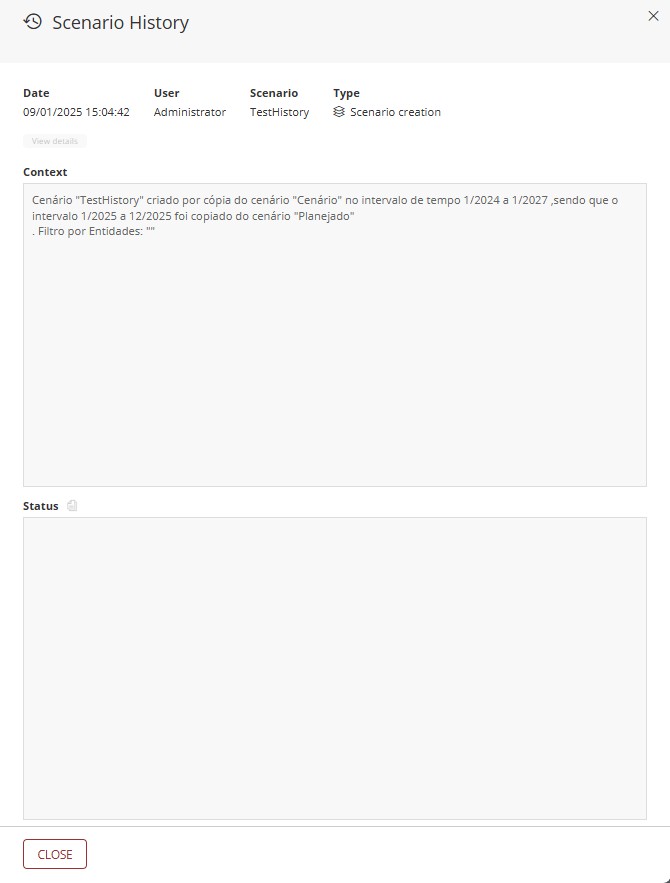
- A side panel will open displaying the same information contained in the listing, but in a detailed way, allowing us in case of error to copy the generated message.
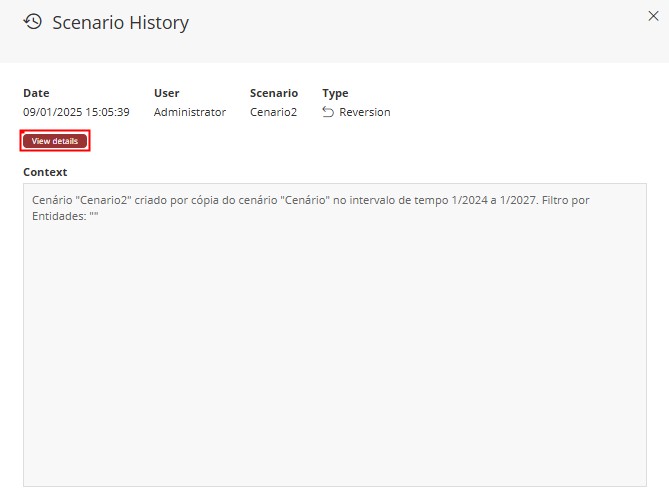
- When selecting a Rollback-type line, the View details button will be enabled. By clicking on "View details" the panel content will be replaced, and it will display the details of the rolled back action.
→