¶ 1. Overview
The Move Data tool allows the transfer of information from one context to another, provided that the aggregation types of the source and destination contexts are compatible. In addition to transferring data to the destination context, it deletes the data in the source context, allowing operations and formulas to be applied during the transfer.
¶ 1.1. Prerequisites
To use this tool, the user must have the following Manager Feature enabled in Permissions:
It is also necessary to enable the Preview Feature:
¶ 2. Functionalities
- Allows moving data between contexts that share the same aggregation structure, ensuring that operations are performed accurately and that source data is deleted after execution.
- Also allows adding operations to the data during transfer, such as addition, subtraction, percentages, and formula application.
¶ 3. Usage
To use the Move Data tool, follow these steps:
1. In the main menu of T6, expand the Scenario section.
2. In the Scenario section, select the Move Data option.
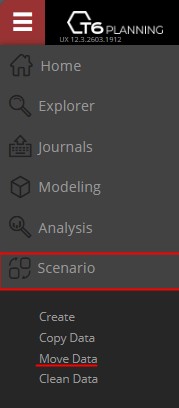
- By clicking Move Data, a new window will open.
3. In the initial step, through a dropdown, select the Application to work with.
- After selecting the application, the source and destination dimensions will be displayed based on the selected application.
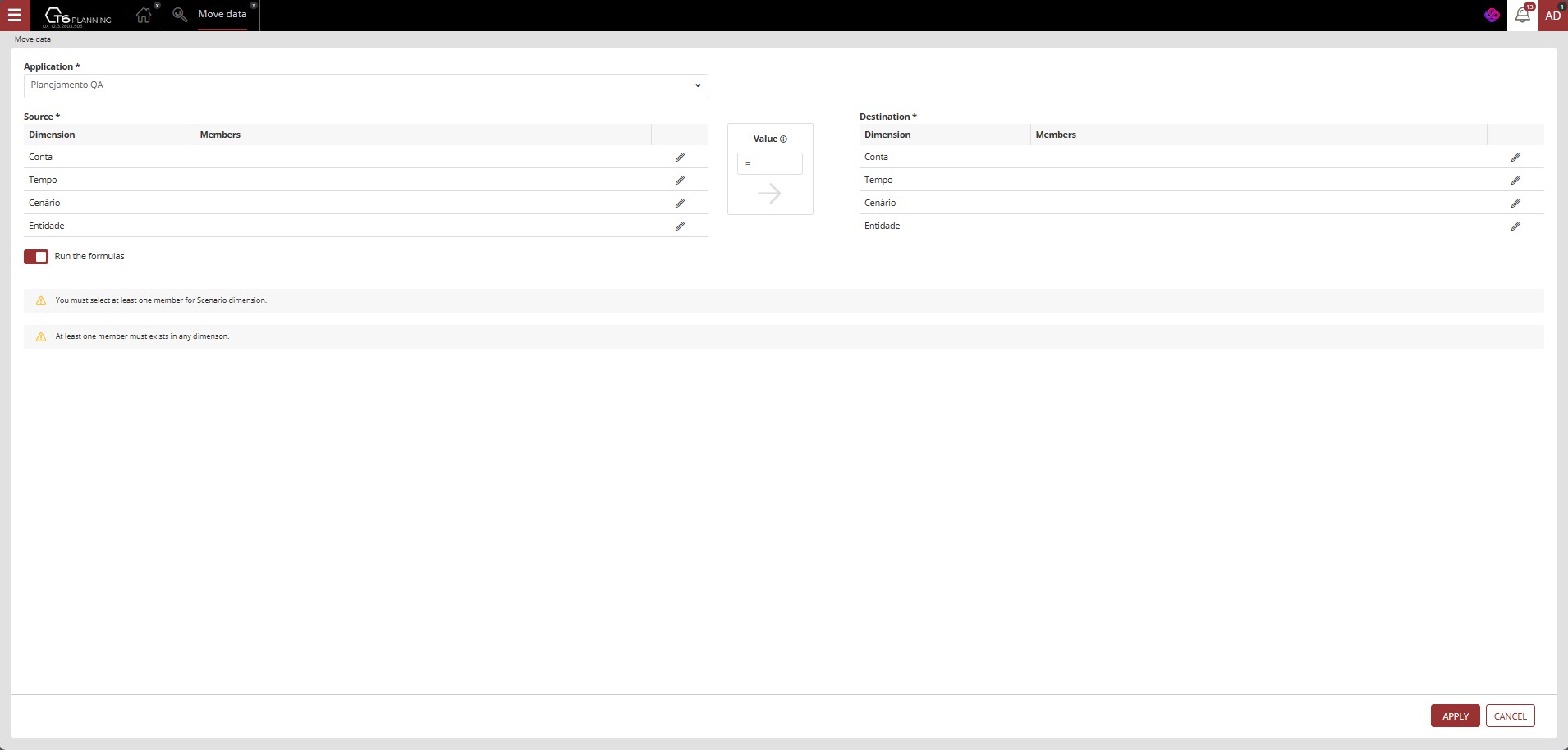
- Source: Location where you define the scope of where the data will be moved from.
- Destination: Location where you define the scope of where the moved data will be stored.
- Operator: Location where you can increase or decrease the values to be moved, either through addition (+n), subtraction (-n), or percentage (+n% | -n%). To use the original values, simply keep the equal sign (=).
It is necessary to select the same number of members in the source and destination dimensions.
4. To select the members of a dimension, click the pencil icon next to the dimension name. The same must be done in both the source and destination dimensions.
If members have been selected in a source dimension, the same dimension must also have members selected in the destination.
It is necessary to select at least one member of the Scenario dimension and one member of another dimension.
- There is also an Execute formulas switch button. When enabled, existing formulas in the application will be executed during the process, including values affected by formula execution.
5. By clicking Apply, a scope verification of the members will be performed. If any inconsistency is found, you will not be able to proceed, and a message will inform the reason for the restriction.
Warning: When performing the action of moving data, the existing data in the source will be transferred to the destination, and the source data will be deleted after completion.
6. Adjust the scope to meet the required conditions and click Apply. If everything is correct, the page will close, and a notification will be generated informing you of the successful data transfer.

You can view the result through Forms in T6.
¶ 4. Q&A
Frequently Asked Questions
1. What is the difference between Move Data and Copy Data?
The main difference is that the Move Data tool transfers data from the source context to the destination context and deletes the data from the source after completion. The Copy Data tool, on the other hand, keeps the data in the source context after the transfer.
2. Is it possible to move data between different applications?
No, the Move Data tool only works within the same application. Data must be moved between contexts that share the same aggregation structure within the selected application.
3. What happens if I select a different number of members in the source and destination?
The system will prevent the operation and display an error message. It is necessary to select the same number of members in the source and destination dimensions for the operation to be executed successfully.
4. How can I apply a mathematical operation during data movement?
In the Operator field, you can:
- Use +n to add a value (e.g., +100)
- Use -n to subtract a value (e.g., -50)
- Use +n% to add a percentage (e.g., +10%)
- Use -n% to subtract a percentage (e.g., -5%)
- Use = to keep the original values
5. What does the "Execute formulas" option mean?
When this option is enabled, existing formulas in the application will be executed during the data movement process. This means that the transferred values will be affected by the configured formulas, bringing calculated results instead of static values.
6. Is it possible to undo a move data operation after execution?
There is no automatic undo function. Since the source data is deleted after the transfer, it is important to be certain before executing the operation. It is always recommended to make a backup or have a recovery strategy before moving critical data.
7. Which dimensions are mandatory when moving data?
It is mandatory to select at least:
- One member of the Scenario dimension.
- One member of another dimension.
Additionally, if you select members in a dimension in the source, you must select members in the same dimension in the destination.
8. How can I verify if the data was moved successfully?
After successful execution, a notification will be displayed informing you of the success of the operation. You can verify the results through Forms in T6, viewing both the source context (which will be empty) and the destination context (which will contain the transferred data).
9. Does data movement affect audit logs?
Yes, all data movement operations are recorded in the system audit logs, allowing complete traceability of the operations performed, including who executed them, when, and which data was affected.
10. Can I move data in bulk from multiple contexts simultaneously?
Each move data operation works for one pair of contexts (source and destination) at a time. To move data from multiple contexts, you need to run the tool multiple times, once for each desired source-destination pair.