¶ 1. Overview
The Microsoft Teams integration lets a T6 workflow process send cards (Adaptive Cards) to Teams: to a team channel or to a user's personal chat. The card carries data from the process (a title, a description and a details link) and, depending on the template, the user can answer right there without opening T6: approve or reject, write a comment, fill in a response, or record entries that are saved to a Data Table.
Cards are delivered by the T6 Enterprise Teams app, maintained by T6. Every send is queued and can be followed in the Configurations > Microsoft Teams panel, which also lists the system card templates (Notification, Approval and Daily info). Custom templates are created in Explorer as Teams card template objects.
Use the integration when a step of the process should notify a team or ask someone for a quick answer in the tool they already use every day, for example: telling the Planning channel that the budget review is finished, or asking a manager for an approval.
The integration is available in T6 Enterprise cloud environments. On-premises installations do not have the card delivery service: the Microsoft Teams menu and the workflow task are not shown, and the Explorer Teams button says that the integration is not configured. The integration parameters are still listed, but they have no effect.
¶ 1.1. Prerequisites
- The environment must have the Teams delivery service configured by T6. Without it, the Microsoft Teams menu option, the Microsoft Teams workflow task and the Teams card template option in Explorer are not shown, and downloading the app returns The Teams integration is not configured on this server.;
- The global integration parameters must be filled in:
Microsoft Teams - Integrationset to Yes andMicrosoft Teams - Entra Tenant IDset to the Microsoft Entra tenant ID of the organization. See section 2.1 and Parameters Configuration; - To open the Microsoft Teams panel, send test cards and create custom templates, the user needs the global Administrator feature Manage Microsoft Teams. When the environment is upgraded, it is granted automatically to active users who are Multi-Application Administrator;
- To download the Teams app package, the user must be a T6 Administrator;
- To configure the task in a process, the user must be able to edit workflow processes (see Workflow Security) and have the Manager feature Manage Explorer to create objects in Explorer;
- The T6 Enterprise app must be installed in Teams: in the team that will receive channel cards and/or by the users who will receive personal cards (see section 2.2);
- Every user who answers cards must have, in T6, the same E-mail as their Microsoft 365 account (see section 2.3).
¶ 2. Configuration
¶ 2.1. Integration parameters
1. In the T6 main menu, under Configurations, select Parameters;
2. On the Global tab, expand the Integration group and find the Teams parameters;
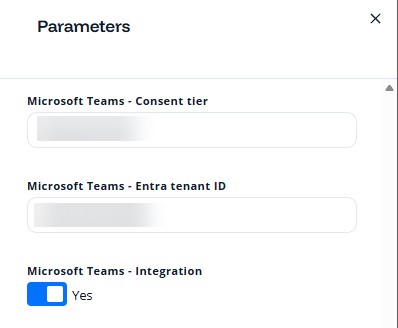
| Code | Parameter | Possible values | Description |
|---|---|---|---|
TeamsEnabled |
Microsoft Teams - Integration | Yes / No | Turns the integration on for the environment. With No, the Microsoft Teams task is no longer offered in the workflow and interactions coming from Teams are ignored; processes already published with the task keep sending cards, but clicks on them have no effect. |
TeamsEntraTenantId |
Microsoft Teams - Entra Tenant ID | Text | ID (GUID) of the organization's Microsoft Entra (Microsoft 365) tenant. It links the organization's Teams to this T6 environment. |
TeamsConsentTier |
Microsoft Teams - Consent Tier | Text | Reserved for future use. Currently, its value does not change how the integration works. |
3. Click the parameter and change its value; the new value is saved as soon as you leave the field.
Set the parameters before installing the app in Teams. Installations made while the tenant is not yet linked are ignored, and a newly linked tenant can take up to 5 minutes to be recognized. If the app was installed earlier, remove it and install it again.
¶ 2.2. Teams app
1. In the T6 main menu, open Explorer > Browser;
2. On the ribbon, Integration tab, Teams group, click the Teams button;
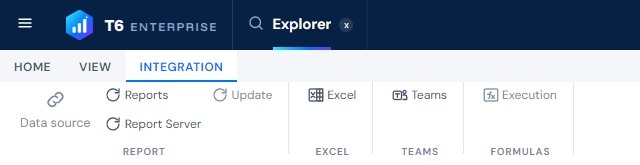
- The file
T6Enterprise-Teams.zipis downloaded (in test environments the name carries the environment suffix, for exampleT6Enterprise-Teams-DEV.zip). The package is already prepared for the environment it was downloaded from; - The button is only shown to T6 Administrators.
3. Hand the file to the organization's Microsoft 365 administrator, who publishes it to the organization's catalog: in the Teams admin center, under Teams apps > Manage apps, option Upload new app;
4. Once published, the T6 Enterprise app must be added:
- To a team, to receive channel cards. During installation Teams asks for the channel where the app is set up; T6 records the team and that channel, which then appear in the workflow task's channel list;
- By each user, in their personal chat, to receive personal cards and to use Send test to me.
When the app is removed from a team or from a user's chat, T6 deletes the recorded destination. Cards still pending for that destination then fail with the cause The recipient could not be resolved, and cards already sent can no longer be updated or closed (a click on them answers The card this action belongs to could not be found.), even if the app is installed again.
If a user writes a message to the app in Teams, it answers, always in English: "This bot delivers PowerPlanning cards. Configure workflows in PowerPlanning to send notifications, approvals and daily updates here."
¶ 2.3. User linking
T6 identifies who answered a card through the Microsoft 365 account's e-mail: the e-mail (or user principal name, UPN) of the Teams account must match the E-mail field of exactly one active T6 user. There is no other linking field. Once created, the link is stored and is not redone when the e-mail changes: correcting the e-mail on the Users screen only fixes accounts that have not been linked yet.
- The link is made automatically when the app is installed (T6 reads the members of the team or chat) and, if it does not exist yet, the first time the user clicks a card;
- Every answer runs with the permissions of the linked user;
- If no active user has that e-mail, or if more than one user shares it, the click changes nothing and the user gets, always in English, the message Your Microsoft Teams account is not linked to a PowerPlanning user. Contact your administrator.
¶ 3. Usage
¶ 3.1. Microsoft Teams panel
1. In the T6 main menu, under Configurations, select Microsoft Teams;
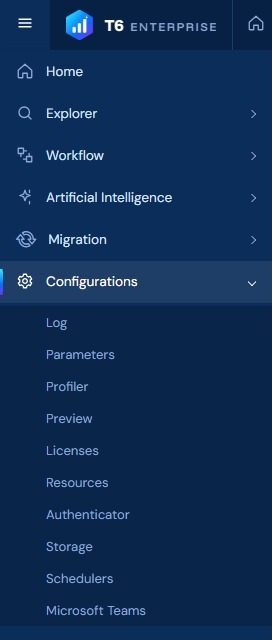
2. A side panel opens with two sections: the system card templates and the delivery status of the cards sent;
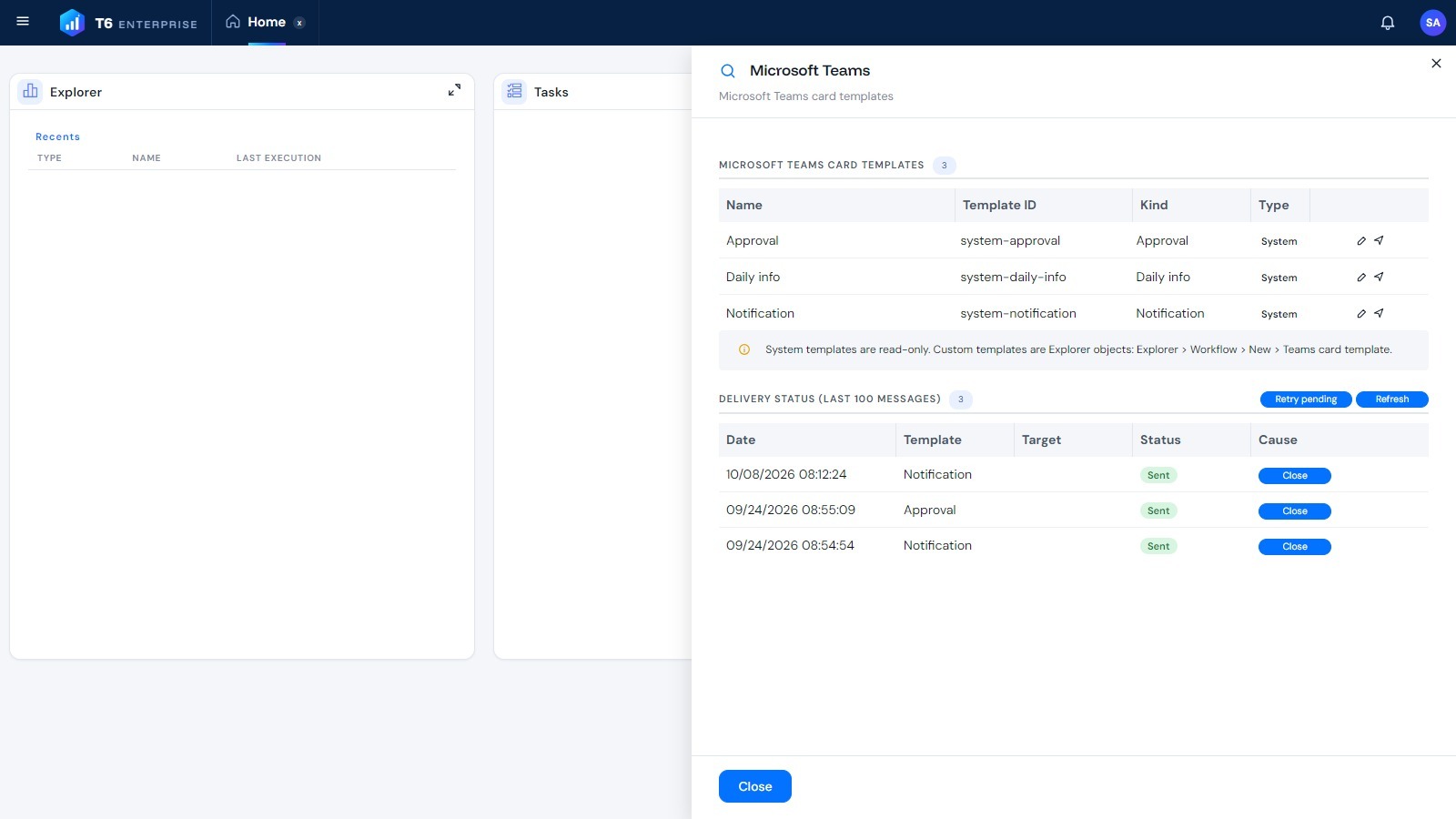
- Microsoft Teams card templates: lists the system templates, with the columns Name, Template ID, Kind (Notification, Approval or Daily info) and Type (System). Each row has:
 Open: opens the template in the editor, read-only (see section 3.2);
 Send test to me: sends the card, with sample data, to your personal Teams chat;
- Below the list, a note reminds you that system templates are read-only and that custom templates are created in Explorer;
- Delivery status (last 100 messages): lists the latest cards sent, with Date, Template, Target (the channel or the user; blank when the app was removed from that destination), Status and Cause (hover over the cause to see the technical error, and over the status to see the number of attempts). The buttons are:
- Retry pending: tries again to send every card with the Pending status;
- Refresh: reloads the list;
- Close: shown on cards with the Sent status. After confirmation, the card loses its buttons in Teams, shows the message This card is closed. No further changes are accepted., and its status changes to Closed.
Close only blocks new answers on the card: it does not complete the workflow task or change its due date.
The Status of each card can be:
| Status | Meaning |
|---|---|
| Pending | The card has not been delivered yet, for example after a temporary failure. Use Retry pending to try again. |
| Sending | Delivery is in progress. |
| Sent | The card was delivered in Teams. |
| Completed | The card received its final answer (for example, the approval) and was finalized. |
| Closed | The card was closed with the Close button. A card whose response period ended only becomes Closed when someone clicks it. |
| Error | Delivery failed for good. See the Cause. |
The failure causes shown are:
| Cause | What to do |
|---|---|
| The app is not installed in the target team or chat | Install the T6 Enterprise app in the team or in the user's chat. A card in Error is not resent: the workflow has to send a new card. |
| The recipient or tenant blocked the bot | The user or the Microsoft 365 administrator blocked the app; ask for it to be allowed. |
| The recipient could not be resolved | The recorded channel or chat no longer exists (for example, the app was removed). |
| Rate limited by Teams | Teams temporarily refused the send because of too many messages; the card stays pending for a retry. |
| The card exceeds the size limit | The assembled card is larger than 100 KB; reduce the content of the template or of the fields. |
| Delivery failed; see the details | Another error; hover over the cause to see the details. |
Cards that fail temporarily keep the Pending status and are not retried automatically: use the Retry pending button. Each card gets at most 3 attempts; after that, it moves to Error.
Users without the Manage Microsoft Teams feature who open the panel see the message You do not have permission to manage Microsoft Teams card templates.
¶ 3.2. System card templates
T6 provides three ready-made templates, refreshed automatically every time the environment is upgraded:
| Name | Template ID | Kind | Card content |
|---|---|---|---|
| Notification | system-notification |
Notification | Title, description and the Details button, which opens the link given in the task (the button is hidden when the task gives no link). |
| Approval | system-approval |
Approval | Title, description, a Comment field and the Approve, Reject and Details buttons. |
| Daily info | system-daily-info |
Daily info | Sample daily entry collection: a task picker with search, the Progress / result, Next commitment and Blockers / risks / decisions fields, the Submit and Clear buttons and the Registered today list with the user's entries of the day, each with a Remove button. |
The fixed texts of the system cards (such as Approve, Reject and Details) are shown in English in Teams, whatever the user's language.
The Daily info template reads and writes data tables with fixed names,
DAILY_INFOandTASKS, which must exist in the environment with the columns the template expects.DAILY_INFO, which receives the entries, must be of creation type Create, and both tables need at least one data form that the answering user can open. If the tables do not exist orDAILY_INFOis not of type Create, the editor's test send is rejected by validation; without an accessible data form, answers on the card fail with the message You do not have permission to see this form. For other collection scenarios, create a custom template of kind Entry collection (see section 3.3).
1. In the Microsoft Teams panel, click on the row of the template you want;
- The template editor opens. For system templates every field is locked and the Save button is disabled;
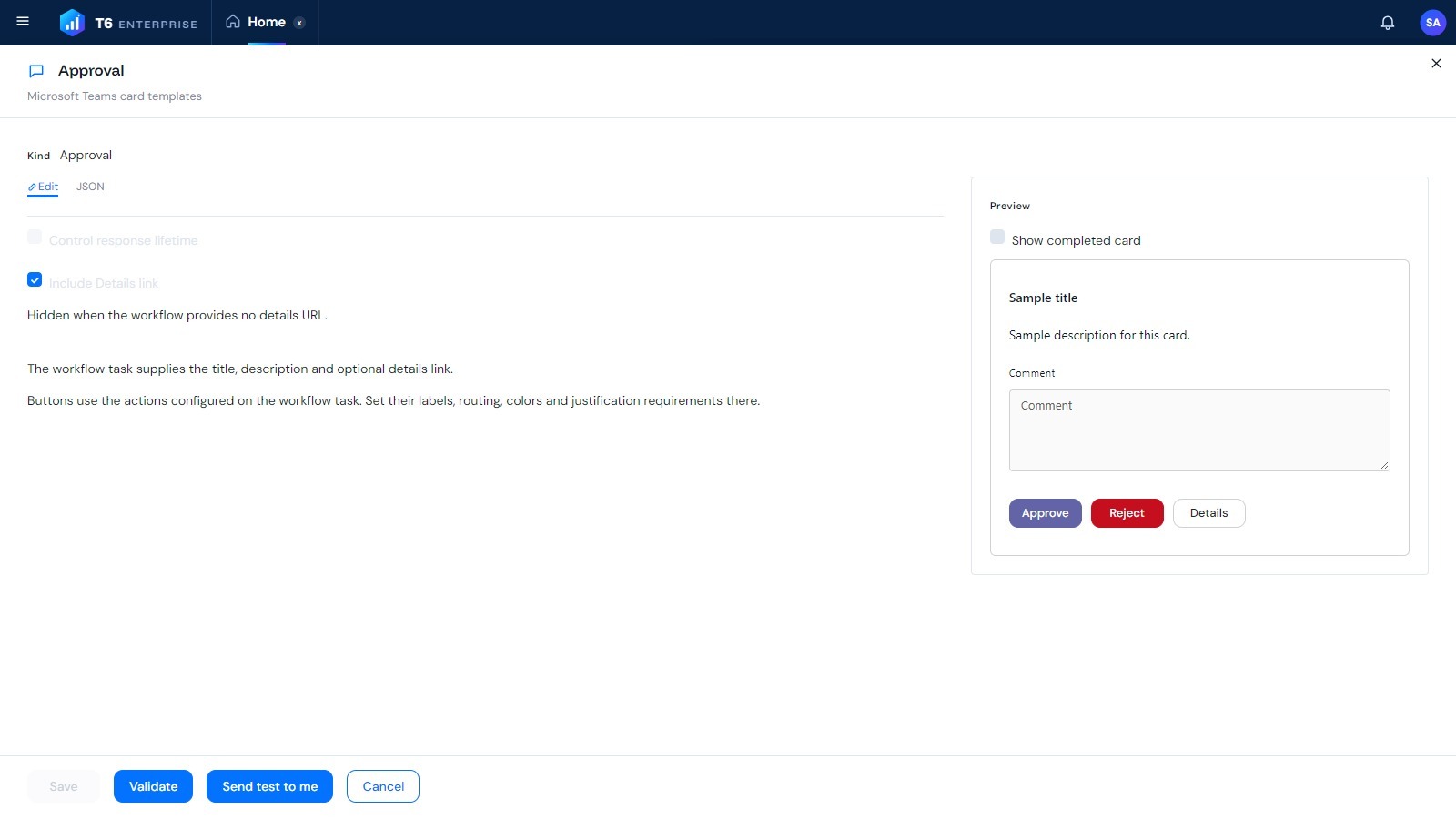
- Kind: the template kind (here, Approval);
- Edit and JSON tabs: the JSON tab shows the technical definition of the card (content, filters and actions);
- Control response lifetime: defines whether the card has a deadline for answers. On the system templates the option is read-only: off on Notification and Approval, and on for Daily info, which closes the card at the end of the day;
- Include Details link: adds the Details button to the card. It is hidden when the task gives no Url;
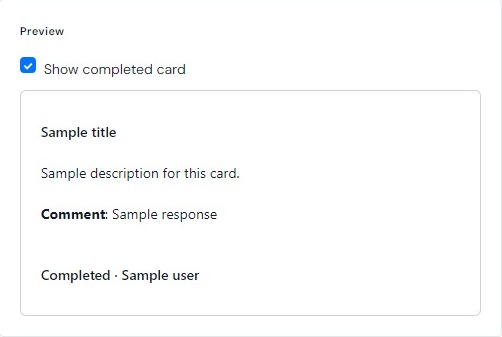
- Preview: shows how the card will look, with sample data. Check Show completed card to see the final state of the card, after the answer:
- Validate: checks the template definition. When there are no problems it shows The card template is valid.; otherwise it lists the problems found under Errors and Warnings. Save or Send test to me with an invalid template shows the message The card template is invalid: followed by the problem;
- Send test to me: sends the card with sample data to your personal Teams chat. The test card's buttons do nothing and answer, always in English, This is a test card; its actions are disabled.;
- Cancel: closes the editor.
To use Send test to me, you must have added the T6 Enterprise app to your personal Teams chat and be linked by e-mail (see section 2.3). Otherwise the message Microsoft Teams has no personal conversation for your account; add the PowerPlanning app in Teams first. is shown.
¶ 3.3. Custom templates
When the system templates do not fit the scenario, you can create your own templates in Explorer:
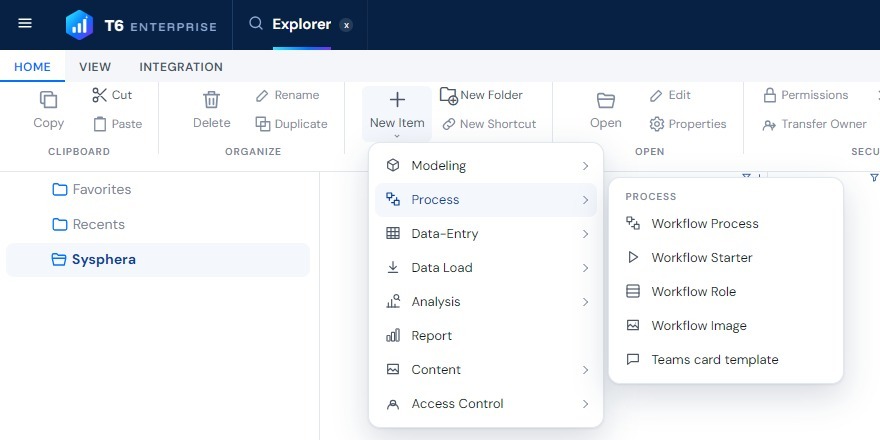
1. In Explorer, click New Item > Process > Teams card template;
2. In the editor, choose what the card does, among Notification, Approval, Response (the user fills in fields and submits) and Entry collection (the user saves, edits and removes entries in a data form), and click Create card. The kind cannot be changed later. In the current version, the workflow task accepts Notification, Approval and Entry collection templates; Response templates cannot be used in it yet (see section 3.4);
3. Configure the fields, texts and rules of the card, check the Preview, click Validate and then Save.
- The option is only shown when the environment has the Teams delivery service configured, and to users with the Manage Microsoft Teams and Manage Explorer features;
- The saved template appears in the workflow task's Template field for users who can read the object;
- On the JSON tab, advanced users edit the full definition: Template ID (read-only), Card (the Adaptive Card content, required), Page filters and Actions. In Actions, each card button runs one or more of these actions:
StartProcess: starts a workflow process through a workflow starter given in the action, with the card values as process parameters;InsertRow: inserts a row in the data table;UpdateRowCells: updates cells of a row found by key;DeleteRow: permanently deletes a row found by key;SelectRow: loads one of the user's own entries into the card fields for editing (entry collection cards);ClearInputs: clears the card fields (entry collection cards);CompleteTask: completes the workflow task waiting for the card, with theApproveorRejectoutcome. In the current version the workflow task does not wait for the card, so this action is not run (see section 3.4).
- The visual editor generates these actions automatically; on entry collection cards, for example, it creates the save, edit (
SelectRow), clear (ClearInputs), remove and finish (CompleteTask) buttons; - The Page filters (current date and current user) are filled in by T6 from the linked user and the server date, and they limit the rows the card shows and changes;
- Card links must use
httpsand an allowed domain (by default,*.tech6cloud.com; the list is set by T6 in the server configuration); otherwise validation rejects the template and the send fails with the message The card link '...' is not on an allowed domain.
¶ 3.4. Sending a card from the workflow
In the example below, we configure a task that posts a notice to a team channel when the budget review is complete.
1. In Explorer, open the workflow process in the editor, click Task on the ribbon to add a task to the flow and double-click it to open its properties;
2. On the General tab, fill in the Name and the Description and, under Type, select Microsoft Teams;
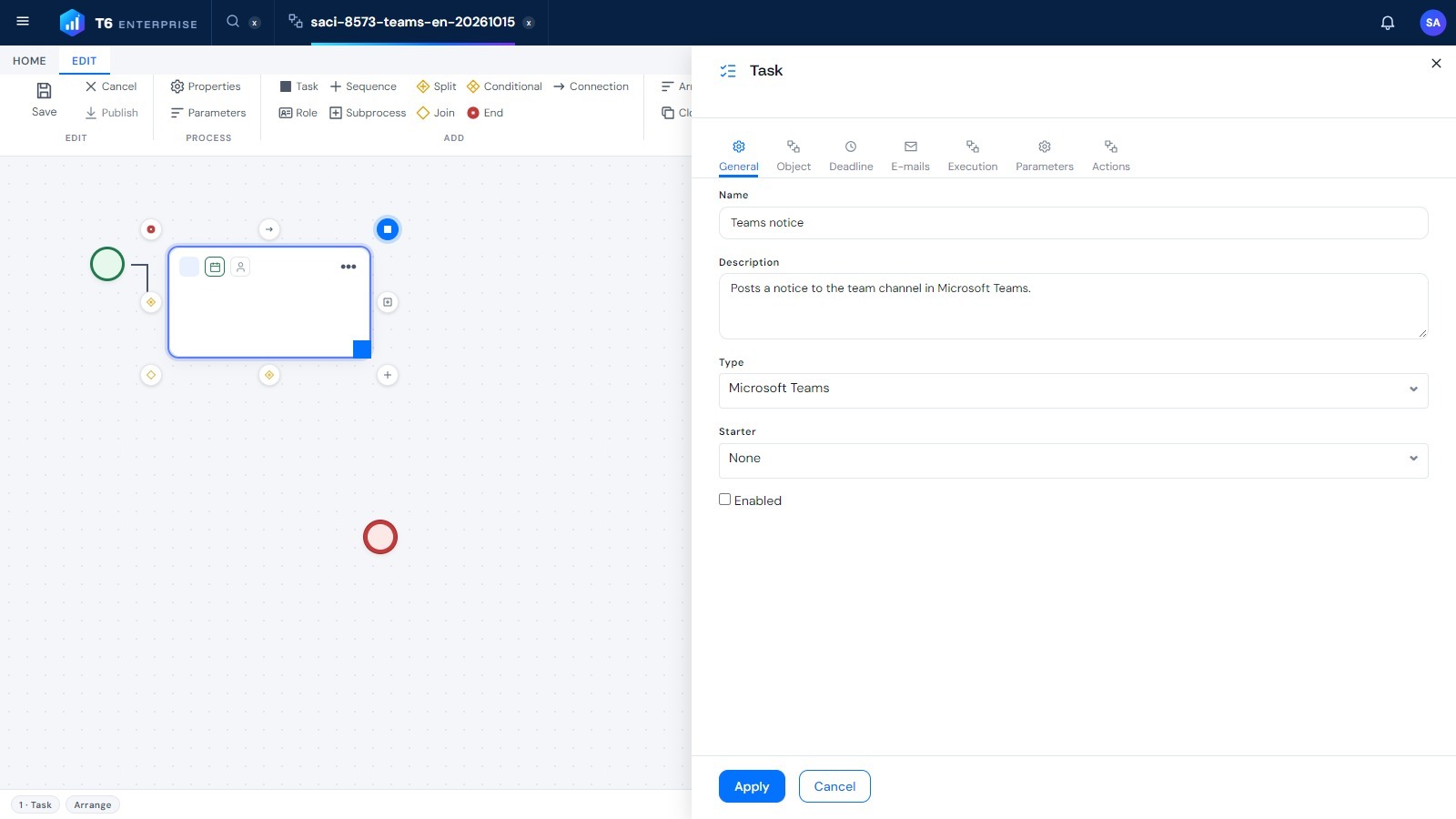
The Microsoft Teams type is only offered when the environment has the delivery service configured and the
TeamsEnabledparameter is set to Yes.
3. On the Object tab, configure the card:
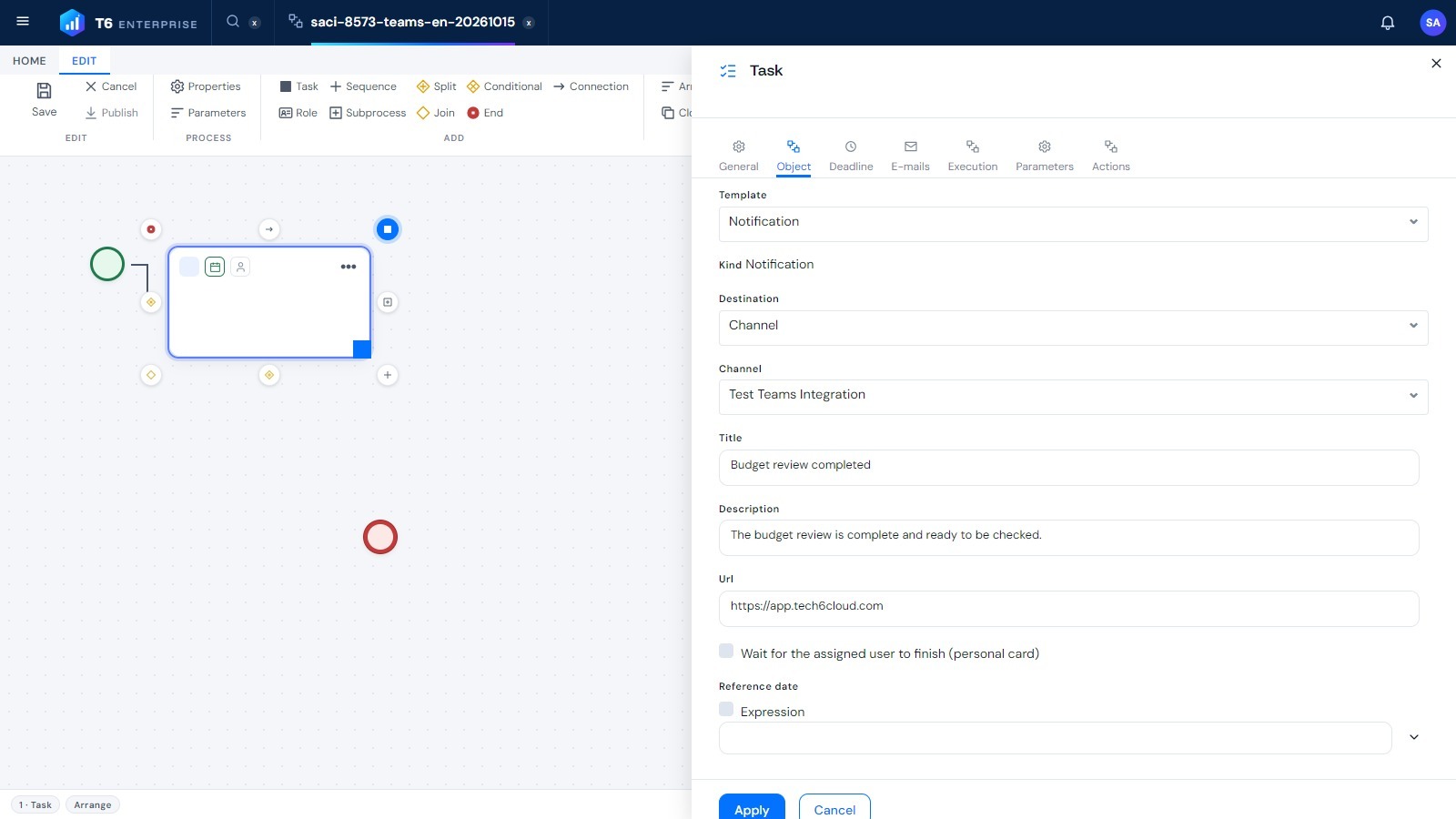
- Template: the card template to send (system templates and the custom templates you can read);
- Kind: shows the kind of the selected template (read-only);
- Destination: Channel, to post to a team channel, or User, to send to a person's personal chat;
- Channel (Channel destination): lists the teams where the app is installed; expand the team and select the channel;
- E-mail (User destination): the recipient's e-mail. The recipient must have added the app to their personal chat and be linked (see section 2.3). It accepts a workflow expression, for example the ResponsibleEmail function;
- Title, Description and Url: the texts and the details link shown on the card. They accept a fixed text or a workflow expression, for example
Instance(ParameterName). If Url is left empty, the Details button is not shown; - Wait for the assigned user to finish (personal card): does not work in the current version and must stay unchecked (see the warning below);
- Reference date: used by templates with a response lifetime (for example, to close the card at the end of the reference day or to filter the entries of the day). Pick a date or check Expression to enter an expression that returns a date in the
yyyy-MM-ddformat. When blank, the sending date is used.
In the current version, the Wait for the assigned user to finish (personal card) option does not work: with it checked, the task ends with an error, without sending the card, and the message The Microsoft Teams task is not configured: select a card template and a target. The screen checks the option automatically when you pick an approval, response or entry collection template with the Response mode Assigned workflow task (the editor's default): clear it before publishing the process. Response templates created in the editor cannot be used either: they require the option, and without it publishing fails with the message Microsoft Teams task: the card configuration is invalid (the template lifecycle does not match the task's assignment mode). The features that depend on the option, such as the card outputs, the approval buttons defined on the Actions tab and completing the task from the card, are not available and are not described on this page.
4. On the Parameters tab, under Card inputs, enter a workflow expression for each input field of the template (for example Instance(DailyPrompt)). The Notification and Approval system templates have no named inputs: they use the Title, Description and Url of the Object tab;
5. Click Apply, save and publish the process.
The task settings are validated when the process is published. The possible messages are: Microsoft Teams task: select a card template; Microsoft Teams task: select a channel or enter the recipient e-mail (also shown when the chosen channel is no longer registered); and Microsoft Teams task: the card configuration is invalid (...), with the details of the problem, for example a required input without an expression.
When the instance reaches the task:
- The task is automatic: the card is built with the instance values, sent, and the workflow moves on to the next step without waiting for the answer;
- If delivery fails for good (for example, the app is not installed), the task ends with an error and the workflow follows its standard error handling. Temporary failures leave the card as Pending in the panel.
If the card cannot be built or sent, the task ends with an error and one of these messages:
| Message | Cause |
|---|---|
| The Microsoft Teams recipient could not be resolved: no linked personal conversation was found for the target user. | User destination: the recipient has not added the T6 Enterprise app to their personal Teams chat, or their account is not linked to a T6 user yet (see section 2.3). |
| The Microsoft Teams task is not configured: select a card template and a target. | The template or the destination is missing, a required card input is empty or invalid, or the Wait for the assigned user to finish option is checked. |
| The Microsoft Teams card template was not found. | The template chosen in the task was deleted. |
| Microsoft Teams task: the card configuration is invalid (...) | The task's inputs no longer match the template, for example after the template was changed, or the template is a Response template (see the warning in step 3). |
| The card link '...' is not on an allowed domain | The Url, or another card link, resolved to an address outside the allowed domains (see section 3.3). |
| This card is closed. No further changes are accepted. | The template has a response lifetime and it had already ended when the card was sent, for example because the Reference date is a day that has passed. |
| The expanded Microsoft Teams card exceeds the maximum allowed size. | The card built with the instance values is over the size limit. |
The Approve and Reject buttons of the Approval template only record the decision on the card: the workflow has already moved on and does not receive the answer. In the current version, a decision made in Teams does not set the path of the process.
¶ 3.5. Answers in Teams
The user answers directly on the card, in Teams:
- Notification: the card shows the title, the description and the Details button, which opens the given link;
- Approval: the user can write in the Comment field and click one of the buttons. The first valid answer finalizes the card for everyone who sees it: buttons and fields are removed, the values filled in are shown (for example, comment: followed by the text typed, since the comment field of the Approval template has no label) and a line is added with the decision, who decided and when, as in the completed card preview. Later clicks, simultaneous ones included, no longer change anything;
- Response: the user fills in the fields and submits; the card is finalized the same way;
- Entry collection: the user saves entries (Save entry) and can edit or remove them when the template allows it. Each entry is written immediately to the data table of the data form chosen in the template, with the user's permissions, and each user can only change their own entries.
Messages the user may get in Teams. They are answers from the app and are always shown in English, whatever the user's language in T6:
| Message | When it appears |
|---|---|
| Your response was recorded. | The answer was saved. |
| Your Microsoft Teams account is not linked to a PowerPlanning user. Contact your administrator. | The account's e-mail does not match exactly one active T6 user, or the personal card belongs to someone else. |
| This card is closed. No further changes are accepted. | The card was closed or its response period ended. |
| Check the value for ... | A required field is empty or has an invalid value. |
| The field is mandatory. | The button requires a field that was left empty. |
| The maximum number of entries has been reached. | The collection reached the maximum number of entries set in the template. |
| This card does not allow this action. | The template does not allow editing or removing entries. |
| This action is not configured for the card template. | The button clicked has no action configured in the card template. |
| You do not have permission to see this form | The user cannot open any data form of the table the card uses. |
| The record changed since this card was sent; the card was refreshed. | The record no longer exists or was changed by someone else; nothing was changed. |
| The card action matched more than one row; nothing was changed. | The record key matched more than one row in the table. |
| The card this action belongs to could not be found. | The card is no longer registered in T6, for example because the app was removed from the team or chat. |
¶ 4. Q&A
Frequently Asked Questions
1. Why is the Microsoft Teams option missing from the Configurations menu?
The option only appears when the environment has the Teams delivery service configured by T6 and the user has the global Manage Microsoft Teams feature. On-premises installations do not have the service.
2. Why is the Microsoft Teams task type missing from the workflow?
Besides the delivery service configured in the environment, the global TeamsEnabled parameter must be set to Yes (see section 2.1).
3. The team channel does not appear in the task's Channel field. What should I do?
A channel is only listed after the T6 Enterprise app is installed in the team with the integration parameters already set. If the app was installed before the tenant was linked, remove it and install it again in the team, choosing the channel you want.
4. How does T6 know who answered a card?
Through the Microsoft 365 account's e-mail, which must match the E-mail of exactly one active T6 user. The answer is saved with that user's permissions. If there is no match, nothing changes and the user is told to contact the administrator.
5. A card is Pending or in Error. What should I do?
Check the Cause column in the Microsoft Teams panel and fix the problem (for example, install the app in the team). Pending cards are resent with the Retry pending button: there is no automatic retry, and each card gets at most 3 attempts before moving to Error. Cards in Error are not resent: the workflow has to send a new card.
6. Can I change the system templates?
No. The Notification, Approval and Daily info templates are read-only and are refreshed by T6 every time the environment is upgraded. For a different card, create a Teams card template in Explorer.
7. Does the Close button complete the workflow task?
No. Close only closes the card in Teams and blocks new answers; the workflow task stays as it was.
8. Which links can be used on cards?
Only https links on allowed domains (by default, *.tech6cloud.com; the list is set by T6 in the server configuration). A link outside the allowed domains makes the send fail with the message The card link '...' is not on an allowed domain.
9. What happens if two people click Approve at the same time?
Only the first answer is applied. The card is finalized for everyone with the decision, who decided and when, and later clicks no longer change anything.
10. A task with Wait for the assigned user to finish ends with an error. Why?
In the current version this option does not work: T6 does not associate the personal Teams chat with the T6 user, and the task ends with the message The Microsoft Teams task is not configured: select a card template and a target. Clear the option on the task's Object tab and publish the process again. Without it, the card is sent and the workflow moves on without waiting for the answer (see section 3.4). Response templates created in the editor are the exception: without the option, publishing fails with the message Microsoft Teams task: the card configuration is invalid (the template lifecycle does not match the task's assignment mode), so they cannot be used in the task in this version.